# How To Add Ads.txt To a Ghost Blog, Self-Hosted
If you are looking to add an ads.txt to a Ghost Blog on platforms such as Digital Ocean, there are few minor adjustments you must make. I'll show you how to do it in this tutorial.
### What is an Ads.txt file?
According to the [docs](https://support.google.com/adsense/answer/7532444?hl=en), its an initiative to help ensure that your digital ad inventory is only sold through sellers who you've identified as authorized (such as Adsense). Creating this file gives you more control over who is allowed to sell ads on your site and prevent counterfiet inventory from being shown to advertisers. Blah, blah, blah.
For you and me, its a file that companies like Adsense tells us (evens warns us) that we should add to the root of our site.
And conveniently, they give us the file, packaged and ready to go.
## How to add Ads.txt to a Ghost blog (self-hosted)
So you want to add this file to the root of your Ghost blog.
And for sake of example, lets assume you're hosting on Digital Ocean (or really any self-hosted, Ubuntu/Nginx combo).
Well, when you do so you get a nice 404 page.
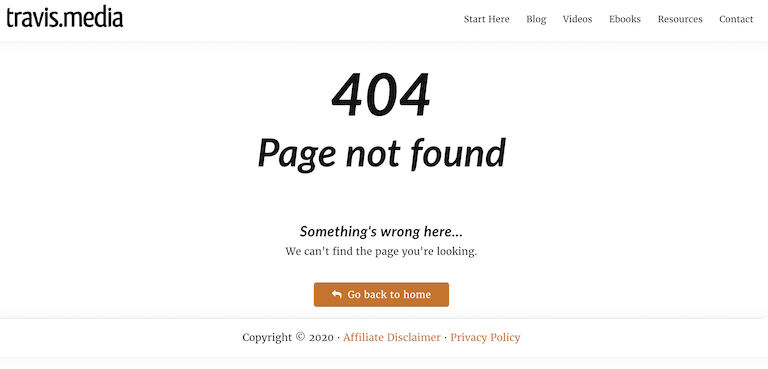
What we actually have to do is allow Nginx to serve static files (or in this case, a static file).
So SSH into your droplet, or use something like Cyberduck or Filezilla to SFTP (or if on Windows, the lovely MobaXterm.
Then navigate over to the `/etc/nginx/sites-enabled` folder. There you will see a .conf file for your site. In my case it's **travis.media.conf**.
Open that up with either nano or just download the file from your SFTP connection and view it nicely in VS Code.
Either way, you will see some location blocks.
Under those, create a new location for your ads.txt file by adding:
```bash
location ~ ^/ads.txt {
root /var/www;
}
```
Then place your ads.txt file into the /var/www folder.
Clear your cache (or try a diff browserr) and you will see that you can now access your ads.txt file from the browser, meaning Google can detect it. [Here's mine](/ads.txt).
### Bonus: How to serve static files in Ghost
In addition to the above, this is how you can serve any static file in Ghost.
In fact, you may want to just create a static folder by which you can serve things like PDFs, CVs, downloadables, etc. from your website.
To do so, add a new location block in that .conf file like so:
```bash
location /static/ {
alias /var/www/static/;
}
```
In doing this, you can now add any asset to the /var/www/static directory and serve it after the /static/ url like `travis.media/static/resume.pdf` or `travis.media/static/free-cheat-sheet.pdf`.
### Conclusion
So that's how you add ads.txt to a Ghost blog and really how you can serve a single or entire directory of static files to your audience.