# Kubernetes Service Accounts: A Complete Guide For Beginners
Kubernetes Service Accounts provide identities for services that run in a pod. In this complete guide, we'll cover service accounts basics, RBAC permissions, as well as how they work with third-party apps.
What are Kubernetes Service Accounts?
> A service account provides an identity for a process that runs in a pod.
That's the official definition from the Kubernetes docs and I think the best I've heard.
Service accounts are not User accounts.
User accounts are used by me and you, Administrators and Developers, to access the cluster and do some dev work or maintenance.
Service accounts are used by applications and processes to authenticate as they talk to the ApiServer.
What is the Default Kubernetes Service Account?
Every namespace has a default service account. And every pod created without specifying a service account gets assigned the default service account (and it's token mounted to it as a secret) though it has very few permissions.
Therefore, if you want to give more permissions to an application, or want custom control, you'll want to create a service account for your app or process.
How to Create a Service Account
You can create a service account imperatively with `kubectl` by running:
```bash
kubectl create serviceaccount myserviceaccount
```
Or you can create one declaratively with:
```yaml
apiVersion: v1
kind: ServiceAccount
metadata:
name: myserviceaccount
```
Service Account Tokens
After creating your service account, run:
```bash
kubectl describe serviceaccount myserviceaccount
```
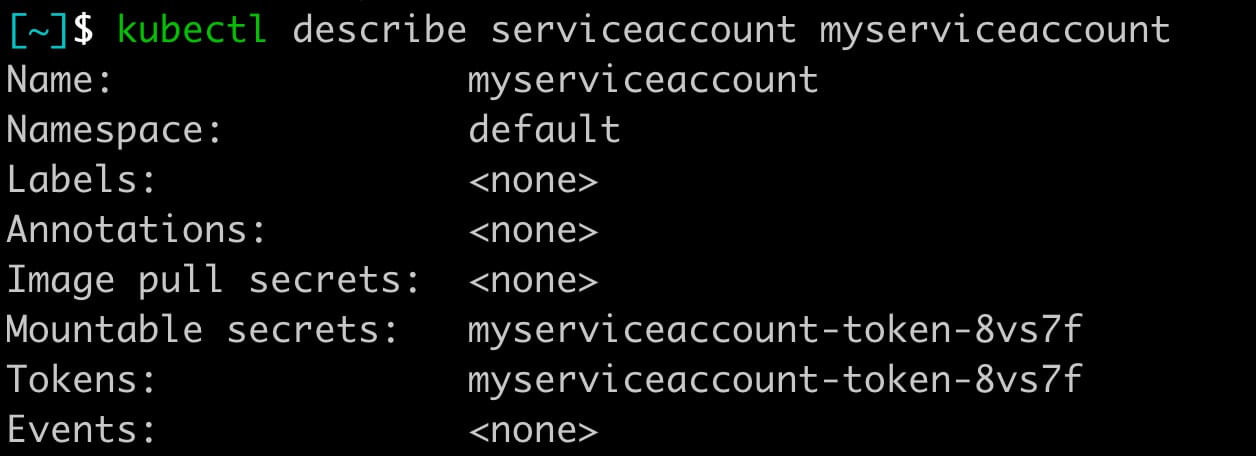 You'll notice that your service account has a token. The one I just created is named: `myserviceaccount-token-8vs7f`. Yours will be different.
This token is stored as a secret and can be read by running:
```bash
kubectl describe secret myserviceaccount-token-8vs7f # Change to your token name
```
You'll notice that your service account has a token. The one I just created is named: `myserviceaccount-token-8vs7f`. Yours will be different.
This token is stored as a secret and can be read by running:
```bash
kubectl describe secret myserviceaccount-token-8vs7f # Change to your token name
```
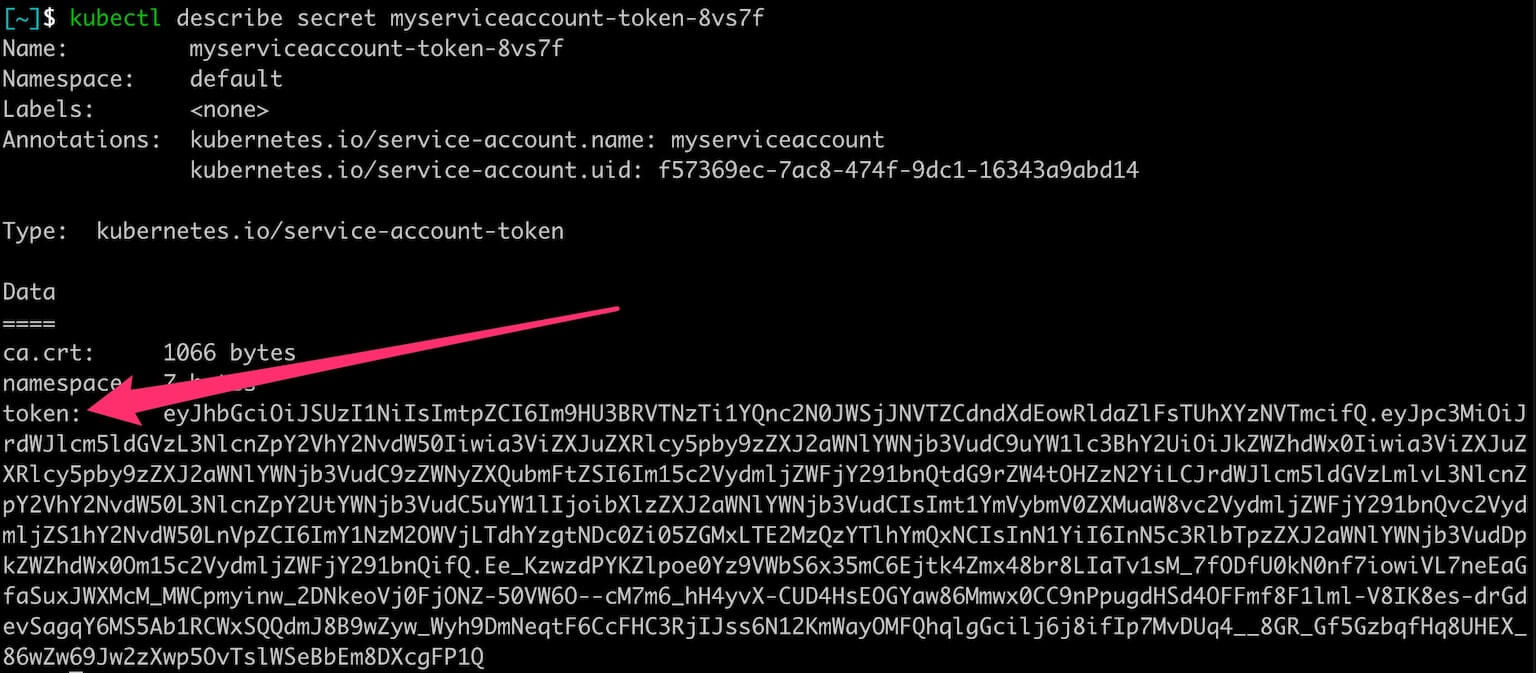 This token is what you'll use to authenticate your third-party app to the Kubernetes ApiServer.
Using a Service Account With In-Cluster or Third-Party Apps
As mentioned above, every pod deployed, if not specified, gets assigned the default service account (and its token mounted as a secret) and will use that.
What if we want to use a different or a custom service account with our app?
You would need to specify the existing service account in the `serviceAccountName` field in the definition like so:
```yaml
apiVersion: v1
kind: Pod
metadata:
name: my-pod
spec:
containers:
- name: my-pod
image: my-image
serviceAccountName: myserviceaccount # <-------
```
And with a third party app you would use the service account token as the Bearer token for authentication.
But what about permissions?
How do I restrict my service account to only access certain queries or commands in the cluster?
Let's look at that next.
Assigning Service Account Permissions / RBAC
To assign permission to service accounts we'll use RBAC, or Role-Based Access Control. For a more in-depth treatment of RBAC, check out my other post here.
And there are three steps:
1. Create a Service Account (or use an existing)
2. Create a Role
3. Bind that Role to the Service Account.
Create a Service Account
First, create a service account. This time we'll specify a namespace. Roles are enforced at the namespace level. We'll look later at how to enforce for multiple namespaces or for the whole cluster!
```yaml
apiVersion: v1
kind: ServiceAccount
metadata:
name: my-serviceaccount
namespace: dev
```
Creating a Role
Now let's say we only want our app to be able to **list the pods** in the dev namespace.
We'd create a Role like so:
```yaml
apiVersion: rbac.authorization.k8s.io/v1
kind: Role
metadata:
namespace: dev
name: pod-reader
rules:
- apiGroups: ['']
resources: ['pods']
verbs: ['get', 'watch', 'list']
```
The resource is "pods" and the actions that can be performed are "get", "watch", and "list".
Bind Role to Service Account
Finally, we need to bind this role to our service account.
For this, we'll use the RoleBinding object:
```yaml
apiVersion: rbac.authorization.k8s.io/v1
kind: RoleBinding
metadata:
name: pod-reader-binding
namespace: dev
roleRef: # points to my Role
apiGroup: rbac.authorization.k8s.io
kind: Role
name: pod-reader # name of role
subjects: # points to my ServiceAccount
- kind: ServiceAccount
name: my-serviceaccount # service account to bind to
namespace: dev # ns of service account
```
And there you have it.
That particular service account can only list pods in the dev namespace.
Assigning Service Account Permissions Cluster Wide
Now what if you want to give the service account access to the entire cluster (i.e. all namespaces). For this we will need to create a ClusterRole instead of a Role.
And this process would look like:
1. Create a Service Account
2. Create a **ClusterRole**
3. Bind that ClusterRole with the Service Account
Create a Service Account
First, create a service account. Again, we'll specify a namespace.
```yaml
apiVersion: v1
kind: ServiceAccount
metadata:
name: my-serviceaccount
namespace: dev
```
Creating a ClusterRole
Now let's say we only want our app to be able to **read secrets** but in ALL namespaces.
We'd create a ClusterRole like so:
```yaml
apiVersion: rbac.authorization.k8s.io/v1
kind: ClusterRole
metadata:
# "namespace" omitted since ClusterRoles are not namespaced
name: my-secrets-clusterrole
rules:
- apiGroups: ['']
resources: ['secrets']
verbs: ['get', 'watch', 'list']
```
Bind ClusterRole to Service Account
To bind our ClusterRole to our service account, we'll use the ClusterRoleBinding object.
The ClusterRoleBinding simply grants the permissions defined in our ClusterRole above to our Service Account:
```yaml
apiVersion: rbac.authorization.k8s.io/v1
kind: ClusterRoleBinding
metadata:
name: read-secrets-global
subjects:
- kind: ServiceAccount
name: my-serviceaccount # name of your service account
namespace: dev # this is the namespace your service account is in
roleRef: # referring to your ClusterRole
kind: ClusterRole
name: my-secrets-clusterrole # ClusterRole name
apiGroup: rbac.authorization.k8s.io
```
Assigning Service Account Permissions To Multiple Namespaces
What if you want to assign Permissions to 2 or 3 namespaces?
For this, you can either:
1. Create a Service Account, Role, and RoleBinding in each of those namespaces.
2. Or you can create a ClusterRole and use RoleBinding per namespace.
For instructions on how to use the latter, see my tutorial here.
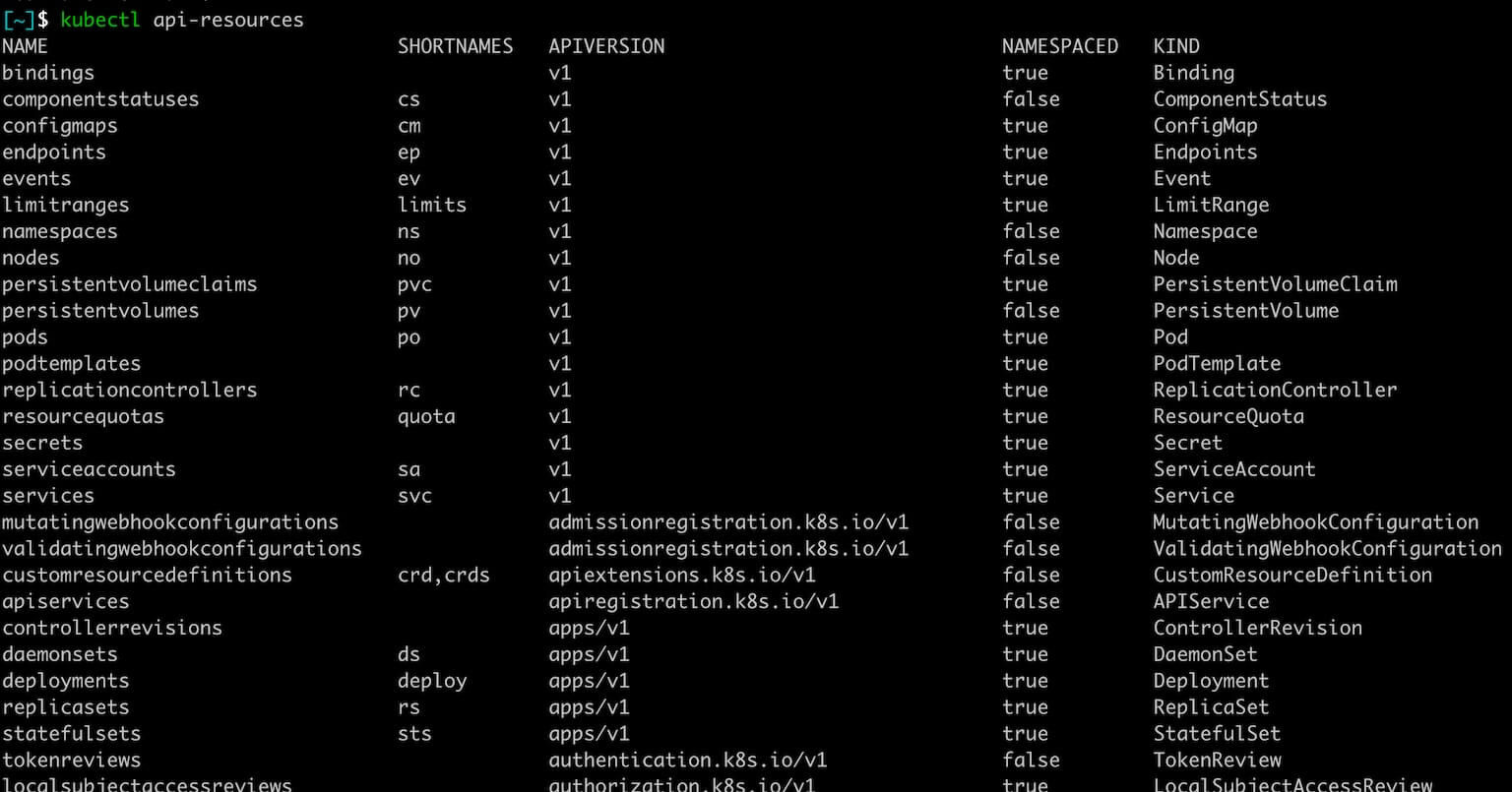
API Resource Options for RBAC?
So what if you want to restrict deployments or persistentvolumes or namespaces or another Kubernetes resource?
How do we know what options we have to put in the "resources" part of our Roles?
We'll, running the following will list out all of the ApiResources you can choose from:
```yaml
kubectl api-resources
```
And you'll see a list like so:
Conclusion
So as you've seen above, a service account provides an identity for a process that runs in a pod. This allows you to authenticate and restrict access and what that process can do.
And these service accounts can be restricted by way of Kubernetes RBAC.
I hope this helped you understand Kubernetes service accounts better.
Let me know if I missed anything or can add anything else to make this guide better below.