# A Simple Guide To Gravity Forms CSS

<p>Gravity Forms is <em>hands down</em> the best tool for WordPress forms. Styling them, however, can be tricky. In this post, I will provide a helpful guide to Gravity Forms CSS, giving you 4 simple concepts to ensure success in styling any form.</p>
<p class="textcenter"><img alt="gravity forms css pinterest" src="https://travismedia.gumlet.io/public/images/2019/12/gravity-forms-css-pinterest.jpg" data-rjs="2"></p>
<p>Many of us have experienced the frustration of trying to style Gravity Forms. On the surface, it is far from the easiest of tasks. However, there are really only a few concepts you need to understand to successfully style Gravity Forms CSS with ease.</p>
<p>And to be specific, I have come up with 4 core concepts that you need to know.</p>
<p>Let's take a look.</p>
<h2>4 Concepts to Understand for Gravity Forms CSS</h2>
<h5>A Video Demonstration &#8211; **<strong><span style="color: rgb(0, 0, 0);">be sure to</span></strong> <a href="https://www.youtube.com/channel/UCGPGirOab9EGy7VH4IwmWVQ?sub_confirmation=1" rel="nofollow noopener noreferrer" target="_blank">subscribe to the channel</a>.</h5>

<div class="videoWrapper"><iframe width="560" height="315" src="https://www.youtube.com/embed/c2HiqiF4DNc" title="YouTube video player" frameborder="0" allow="accelerometer; autoplay; clipboard-write; encrypted-media; gyroscope; picture-in-picture; web-share" referrerpolicy="strict-origin-when-cross-origin" allowfullscreen></iframe></div>

<p>If you'd rather read the post, then continue on for all the details:</p>
<h3 style="text-align: center;">1. Know your Form ID</h3>
<p>Gravity Forms uses basically the same layout and structure with every form.&nbsp;</p>
<p>The only real changing factor is the form number. This is the very first thing you want to obtain when styling any form&#8230;its number.</p>
<p>If you pull up your list of forms, this number is found in the ID column. It is the ID that identifies your form.&nbsp;</p>
<p class="textcenter"><img alt="gravity forms css id" src="https://travismedia.gumlet.io/public/images/2019/12/gravity-forms-css-id.png" style="width: 100%;"><img alt="gravity forms css id" src="https://travismedia.gumlet.io/public/images/2019/12/gravity-forms-css-id.png"></span></p>
<p>The ID for this form is 14.</p>
<h3 style="text-align: center;">2. Know the Gravity Forms Layout</h3>
<p>Understanding the layout of the Gravity Forms Form is key and actually very simple once you see it.&nbsp;</p>
<p>For my example I will create a basic form called 'Testing' that has an ID of 13. It looks like this:</p>
<p class="textcenter"><img alt="gravity forms css example" src="https://travismedia.gumlet.io/public/images/2019/12/gravity-forms-css-example.png" /></p>
<p>Remember, the most important aspect of styling this form is knowing its ID, which in my example is 13.</p>
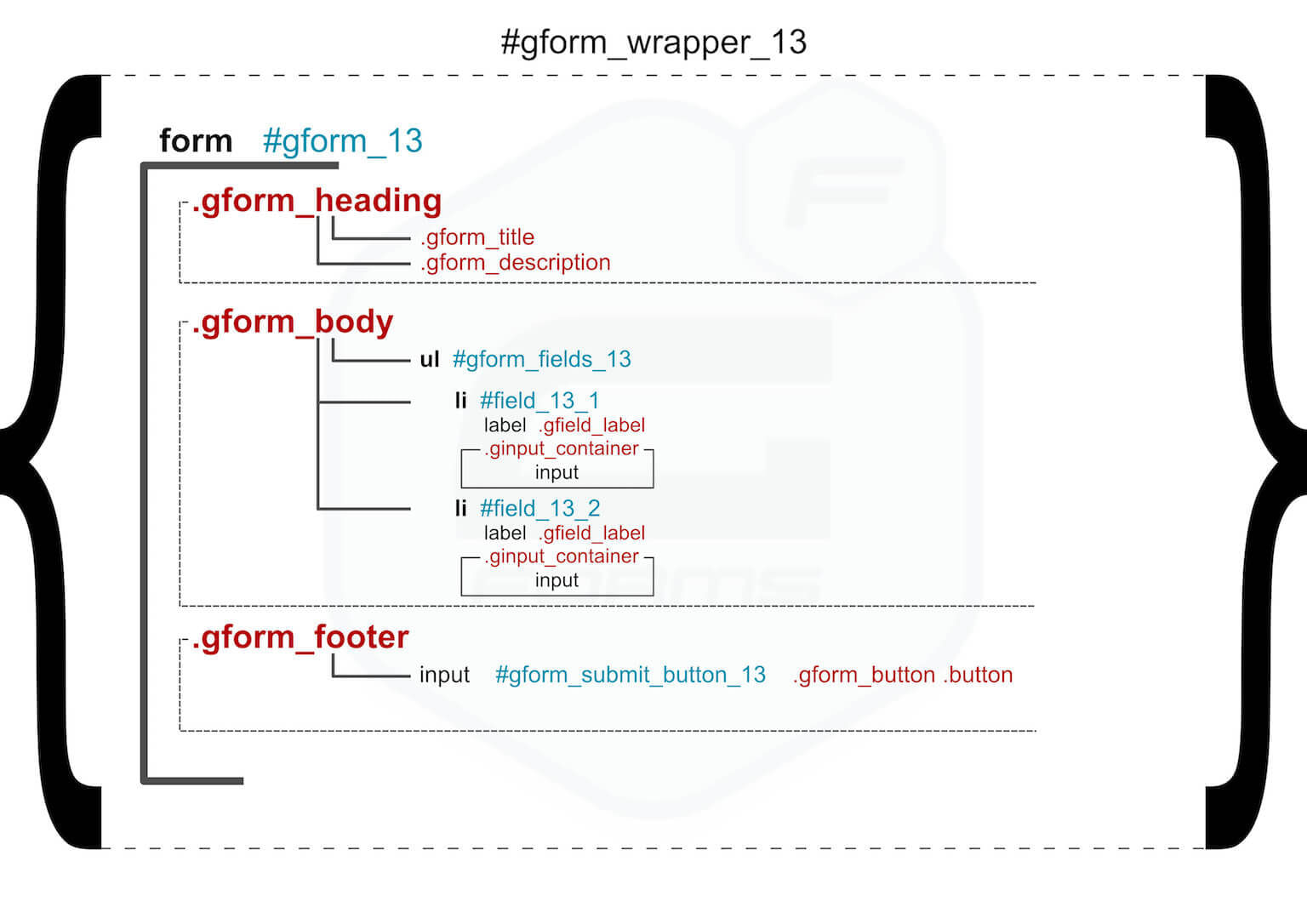
<p>So let's take a look under the hood of the above form, at this detailed diagram I created below of a form with the ID of 13:</p>
<p class="textcenter"><img alt="gravity forms css diagram layout" src="https://travismedia.gumlet.io/public/images/2019/12/gravity-forms-css-diagram-layout.jpg" ></p>
<p>Here are a few things to note:</p>
<ul>
<li>There is a wrapper wrapping the entire form with the ID of gform_wrapper_13</li>
<li>There is a form element with an ID of gform_13</li>
<li>There are three sections with class names: gform_heading, gform_body, and gform_footer.&nbsp;</li>
<li><strong>Heading</strong> includes the form title and description.</li>
<li><strong>Body</strong> includes list items wrapped in an unordered list tag with an ID of gform_fields_13. The list items are fields with, again, IDs related to the form ID. There are labels, and then there are classes of .ginput_container containing inputs.</li>
<li><strong>Footer</strong> includes most importantly, the submit button.</li>
</ul>
<p>In a nutshell that is it. (Yes, the body section can get more complex as you add more complex fields, but I have provided a solid starting point from which to build on).</p>
<p>Download the chart above, and use it for reference.&nbsp;</p>
<h3 style="text-align: center;">3. Be Specific</h3>
<p>What do I mean by this?</p>
<p>I simply mean, if you wish only this form to receive a particular style, <strong>be sure to include IDs and Classes that include your ID number</strong>.&nbsp;</p>
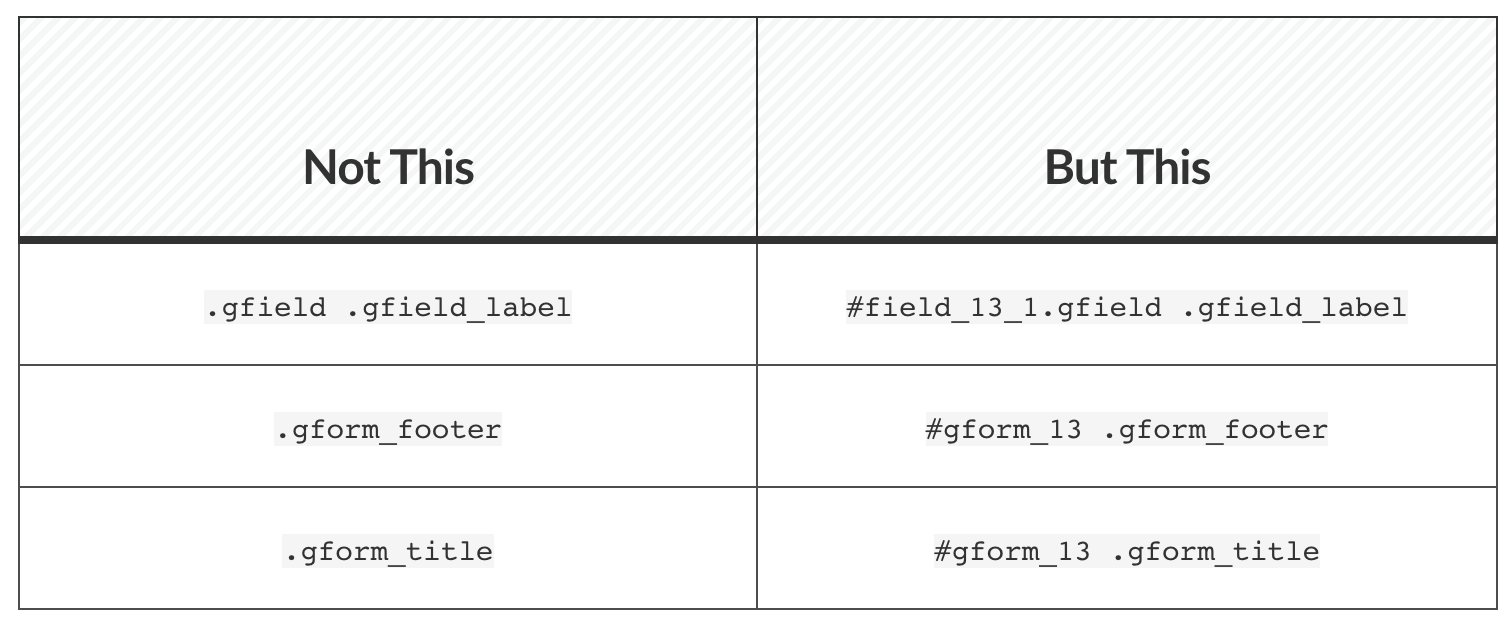
<p>So if you are adding a style to your .gform_body class, and you don't want all your other forms to have that style, add the form ID before it like so:</p>
<p>#gform_13 .gform_body</p>
<p>Other examples of being specific may include:</p>
<p class="textcenter"><img src="https://travismedia.gumlet.io/public/images/2019/12/gravity-forms-css-styling.png" /></p>
<h3 style="text-align: center;">4. Looking Out For Inline Classes</h3>
<p>You may have questioned this example above:</p>
<p>#field_13_1.gfield .gfield_label</p>
<p>This is a CSS rule that I learned later in my coding journey and it goes like this:</p>
<p><strong>If you are targeting two elements in the same line of code, there cannot be a space in between them.</strong></p>
<p>So the .field_13_1 class and the .gfield class as referenced above cannot have any spaces between them because they are on the same line of code:</p>
<p class="textcenter"><img alt="gravity forms css inline css example 2" src="https://travismedia.gumlet.io/public/images/2019/12/gravity-forms-css-inline-css-example-2.jpg" style="width: 100%;" /></p>
<p>And of course the .gfield_label class has a space because it is on the next line.</p>
<p>Just remember this concept as you start to target specific elements. It's important.</p>
<h3>Conclusion</h3>
<p>In my experience, these four Gravity Forms CSS concepts have allowed me a much easier time when styling these forms, and trust me&#8230;..they NEED to be styled.&nbsp;</p>
<p>Let me know if you have any questions.</p>
<p><strong>Have you found it hard to style Gravity Forms forms? What has made it easier for you?</strong></p>
<p><strong>Related Post</strong> &#8212; <a href="/create-custom-checkbox-in-gravity-forms">How to create a custom checkbox in Gravity Forms</a></p></p>