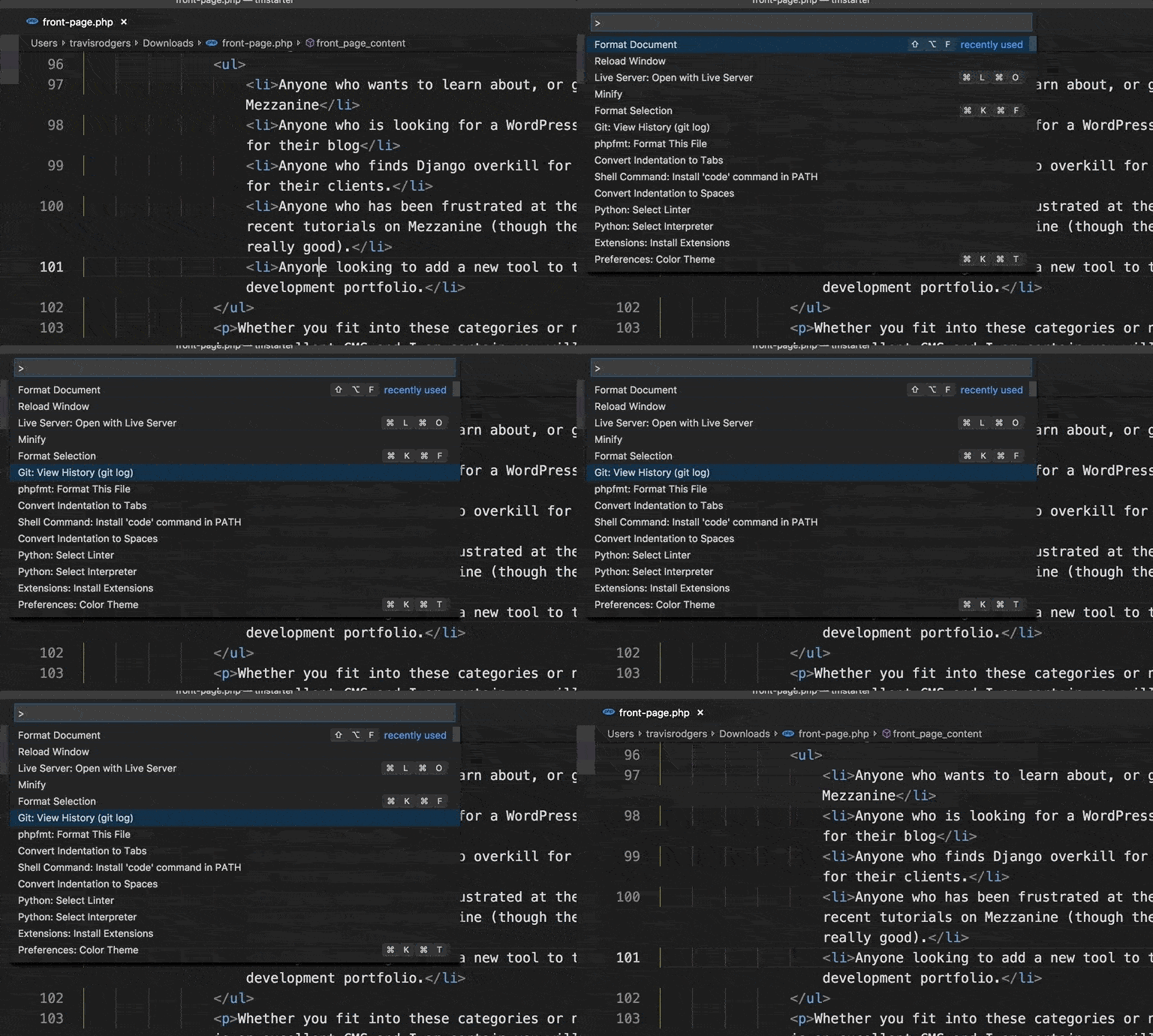
Note: I'm not "anti-mouse" so this list will include some mouse clicks. Sure using your keyboard exclusively is a noble pursuit, but on a Macbook my mouse is "right there." Why not use it also?
The command palette is one of the most foundational of all VS Code shortcuts. It's the shortcut that gives you access to all of the functionality of VS Code.
MacOS: Command + Shift + P
Windows: Ctrl + Shift + P
This is a shortcut I use a lot in my workflow to boost productivity. Basically, you can take a line of code and duplicate it on the line above or below. This is helpful with single lines like <li> tags and also with whole blocks of code like a CSS block or JS function.
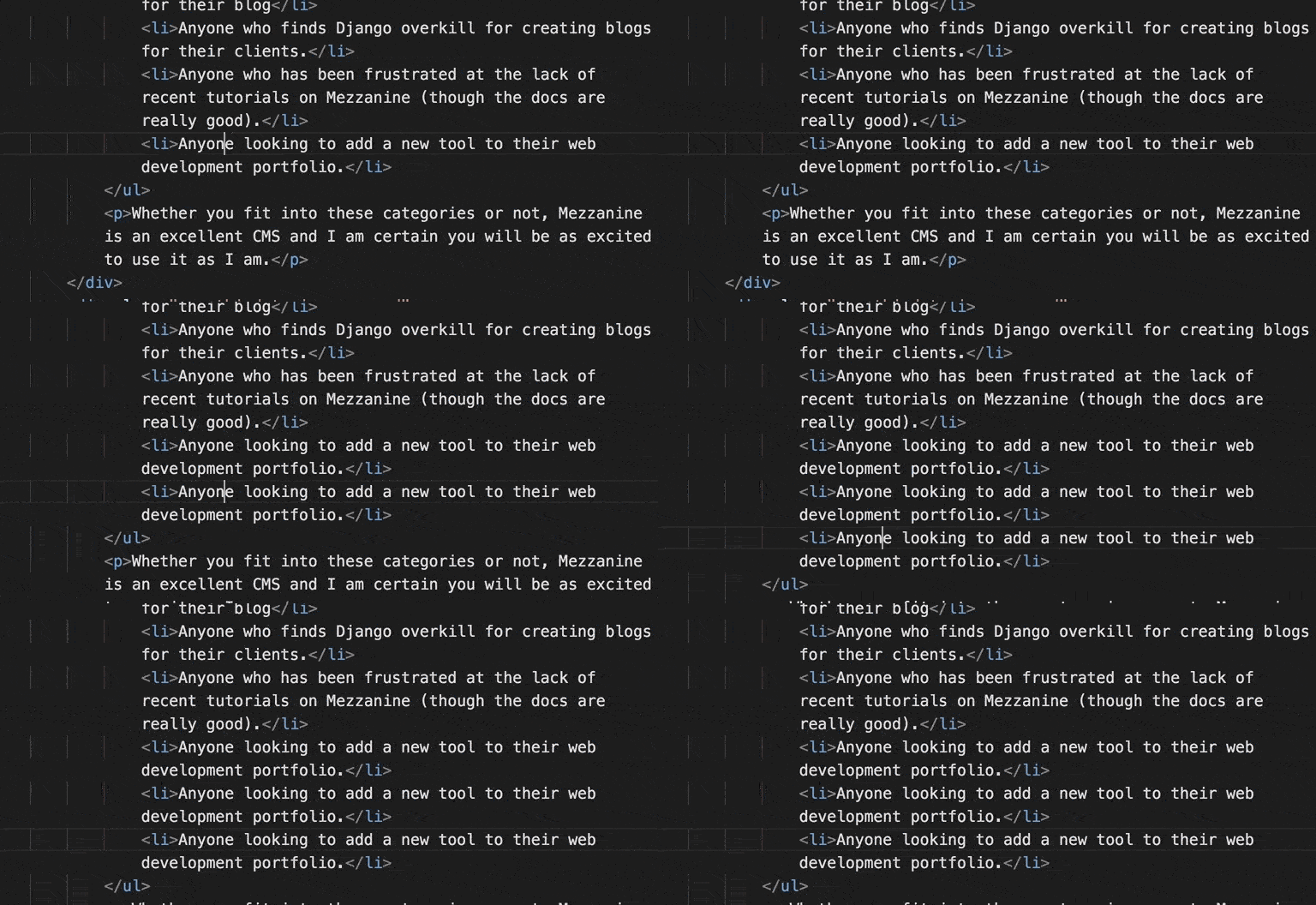
MacOS: Shift + Option + Up / Shift + Option + Down
Windows: Shift + Alt + Up / Shift + Alt + Down
Similar to the shortcut above, this moves the line of code up or down. Again, helpful with single lines like reordering <li> tags as well as blocks of code.
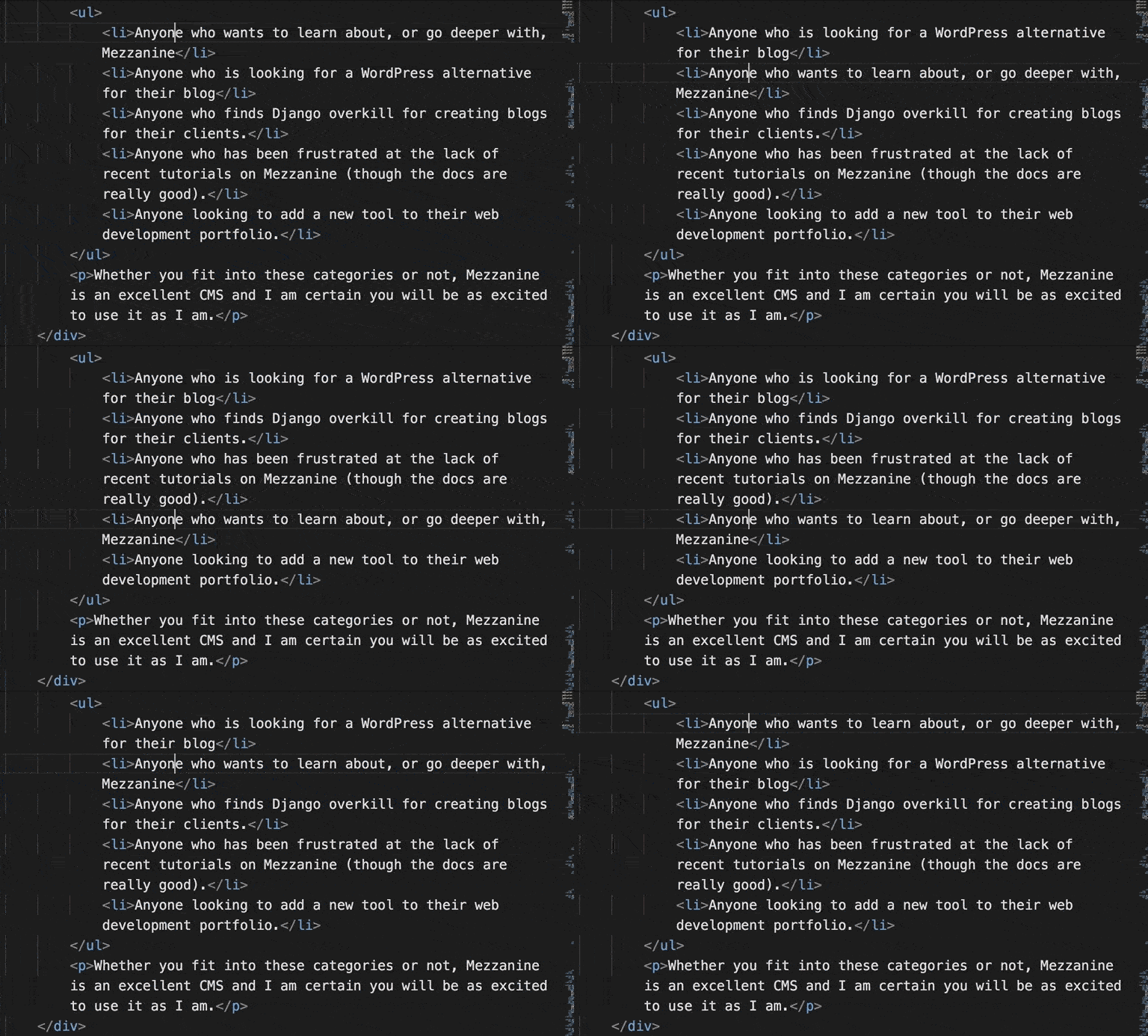
MacOS: Option + Up / Option + Down
Windows: Alt + Up / Alt + Down
Another of the very helpful VS Code shortcuts and one to memorize. When you copy and paste something in Visual Studio Code, it doesn't always line up right (actually it rarely does). This shortcut allows you to indent or outdent a line or even an entire block of code.
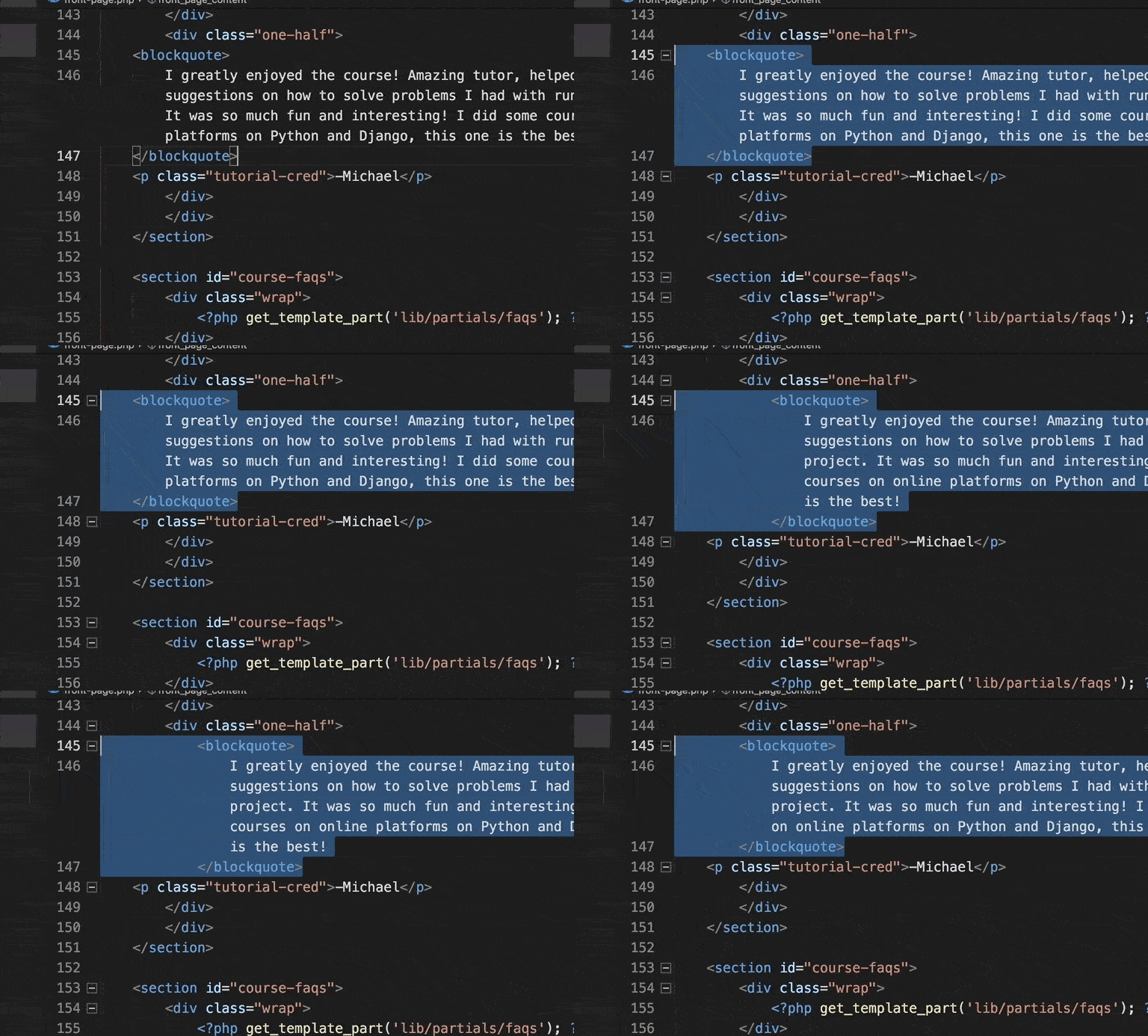
MacOS: Command + ] / Command + [
Windows: Ctrl + ] / Ctrl + [
So you decide to change all of the H3 tags on your template to H4 tags. So you go through and select each one and change it? No. You multi-select them all and change them all in one take.
In that example, you would highlight just one H3 tag, and as you hit the shortcut below it goes through and selects the other instances of that tag, providing you an active cursor with each one.
Of all the VS Code shortcuts this is one of my favorites and will boost your productivity.
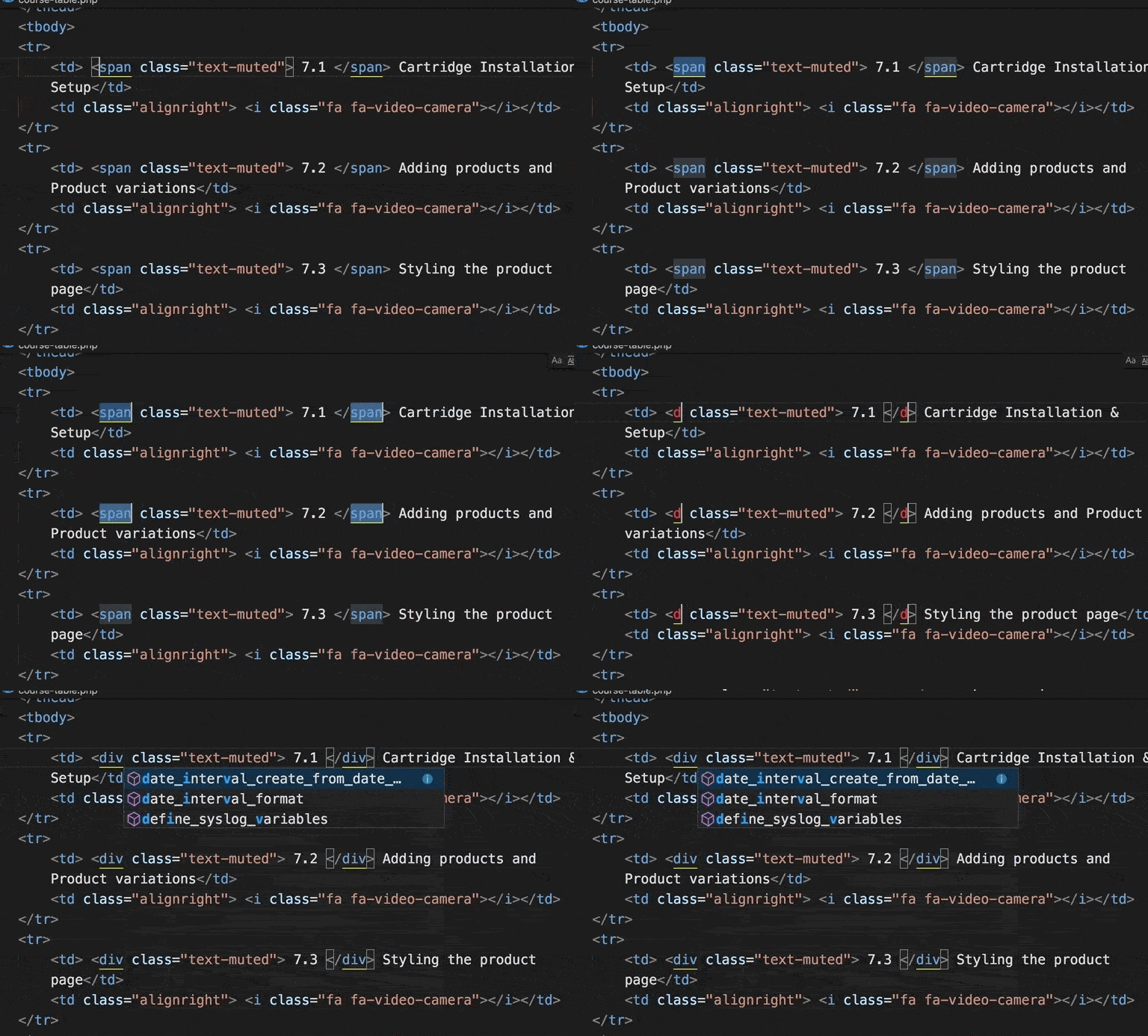
MacOS: Command + D (to select next occurrence(s) after you make an initial selection)
Windows: Ctrl + D (to select next occurrence(s) after you make an initial selection).
* There is a shortcut to select ALL occurrences, but I like to go through them one by one to be sure I want to change that one.
Similar to the above, instead of selecting the next occurrences of a selection, you can place your cursor in multiple locations, and make edits to all and one time.
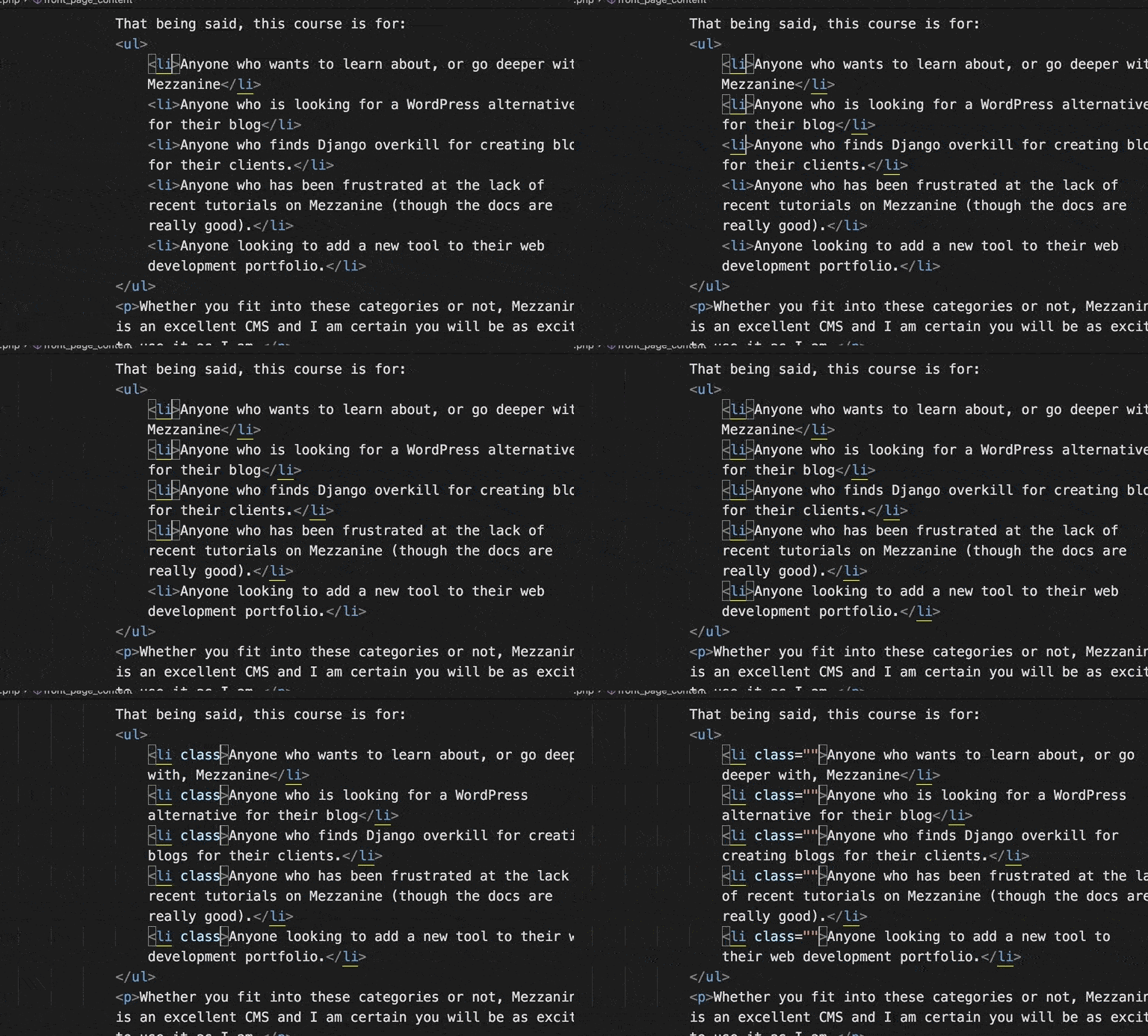
MacOS: Option + Click
Windows: Alt + Click
So we use line comments to "disable" a line or block of code or HTML or CSS right?
This Visual Studio Code shortcut allows you to disable a line or block of code by commenting it out. You can also use it again to re-enable that line or block of code by removing the comment markup.
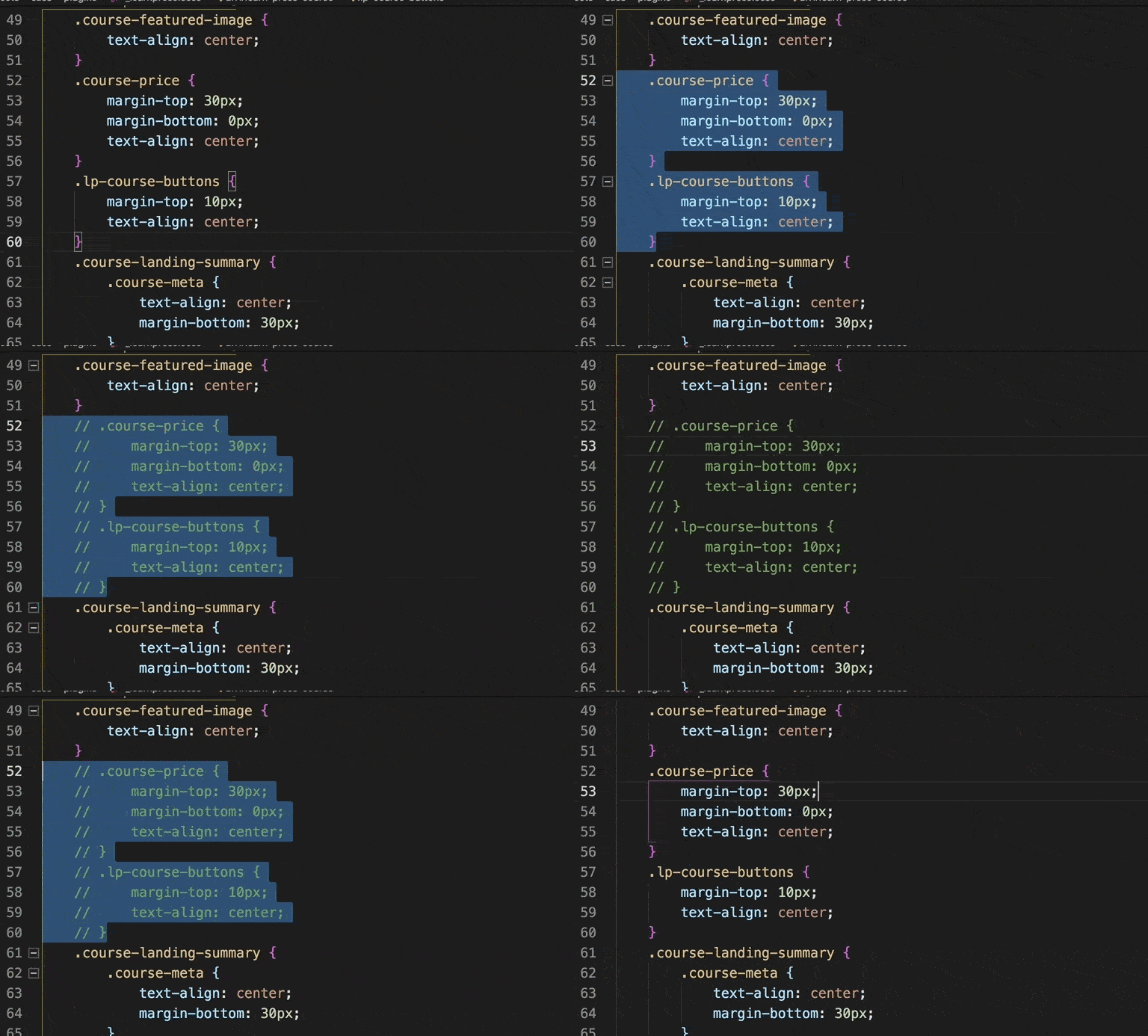
MacOS: Command + /
Windows: Ctrl + /
I almost exclusively use the VS Code Integrated terminal and rarely ever the OS Terminal. So of all the VS Code shortcuts, this is especially useful for me and for you if you do the same.
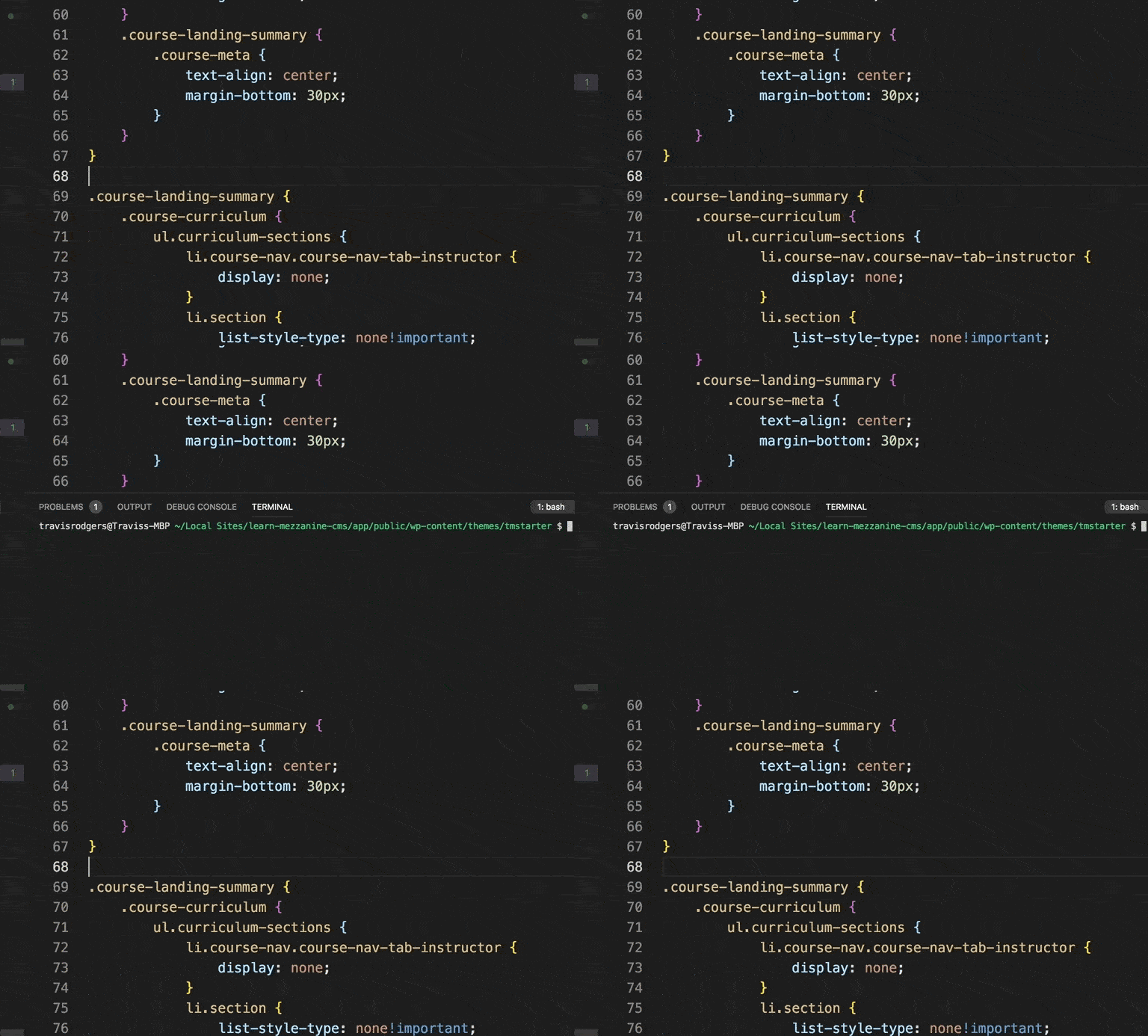
MacOS: Control + ̀
Windows: Ctrl + ̀
Adding a line comment to HTML and CSS is somewhat cumbersome to type out.
Thankfully VS Code has a shortcut to pop it in there for you. Use your right hand to hit the K and left to hit the C while holding Command.
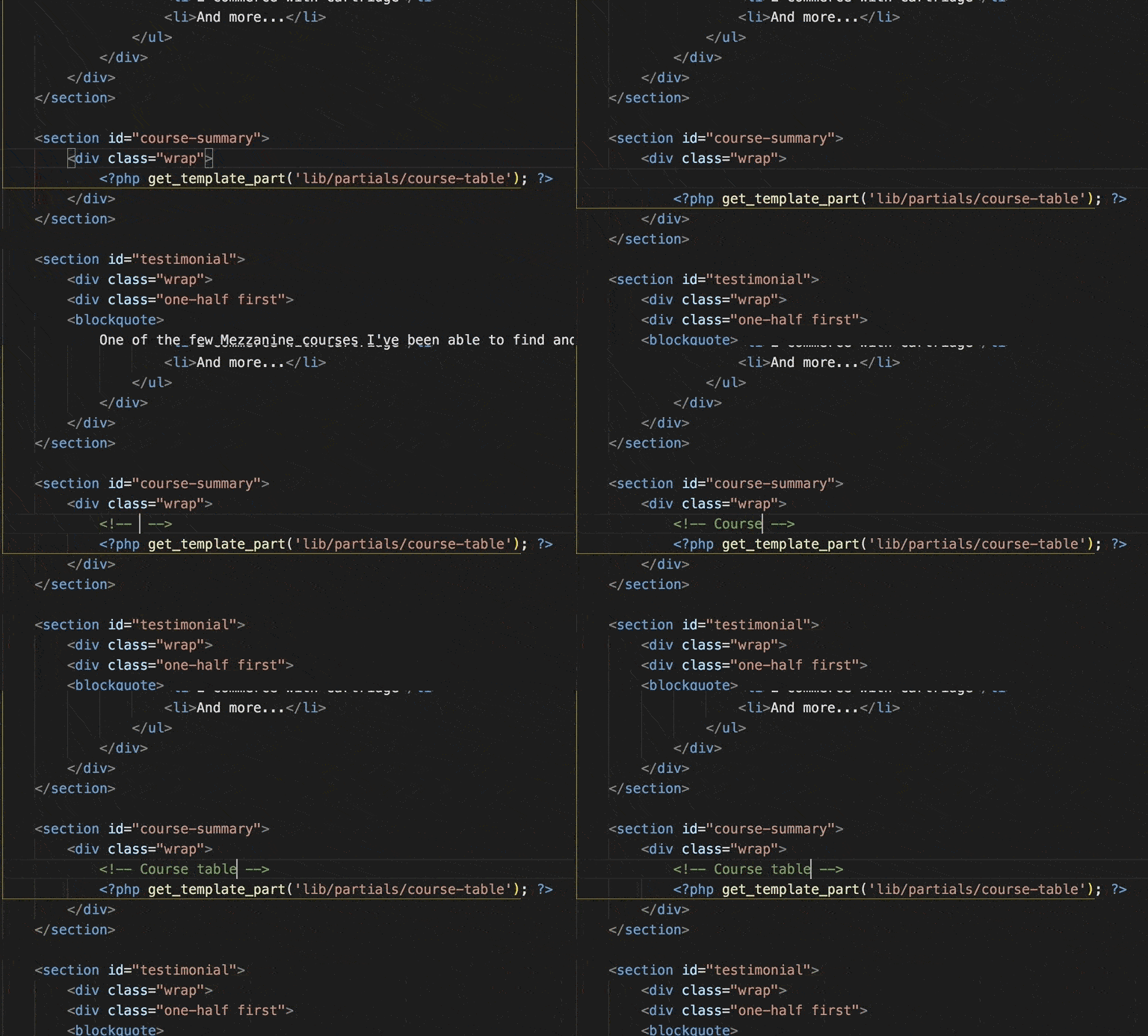
MacOS: Command + K Command + C
Windows: Ctrl + K Ctrl + C
Of all the VS Code shortcuts, this is another major one for me. I don't like that sidebar there when I'm writing code. At the same time, when I need it back, I want it back with ease.
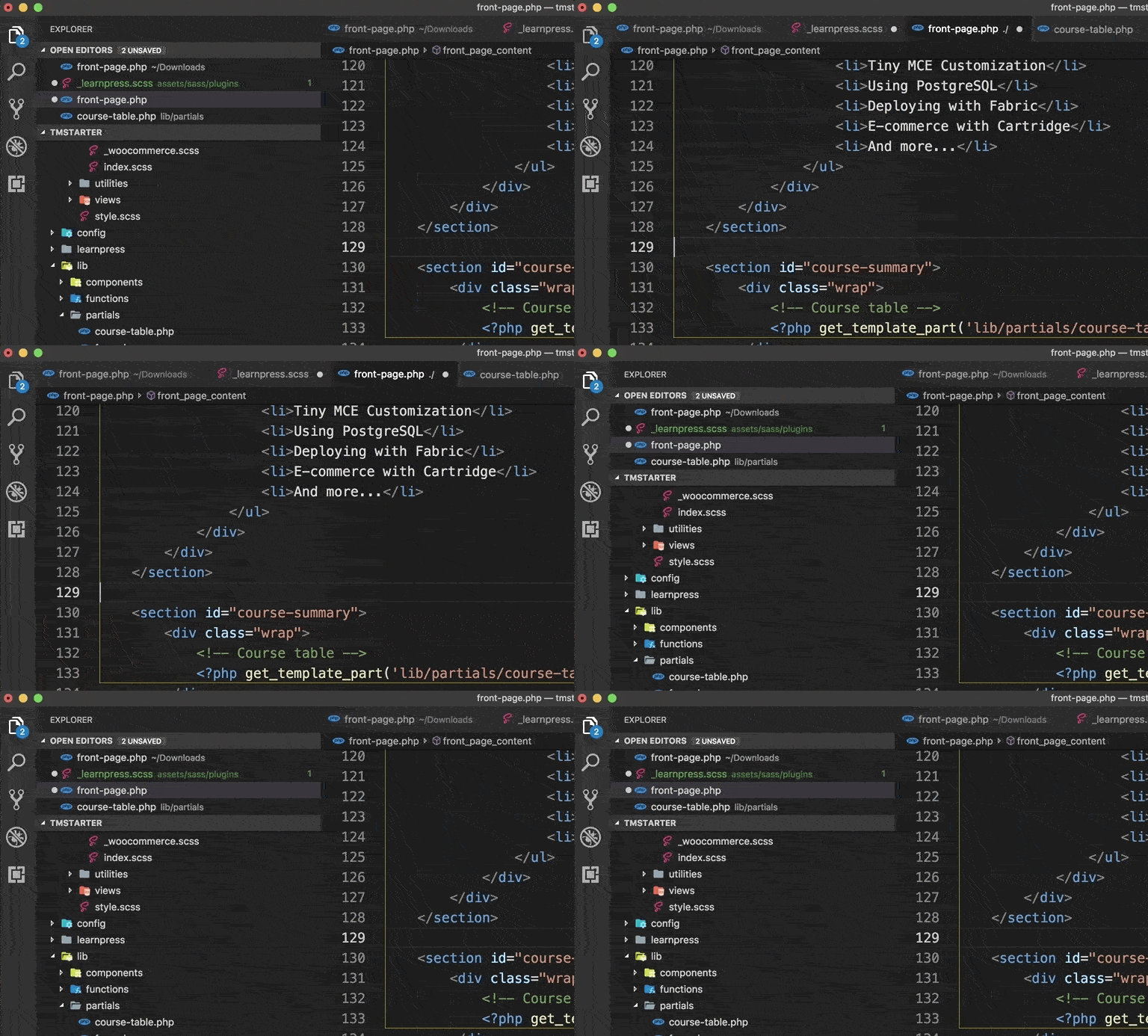
MacOS: Command + B
Windows: Ctrl + B
Visual studio code can be downloaded at their website. It's my favorite code editor and I use it exclusively. I found Brackets to be not quite enough for what I need, Atom to be super slow and bulky, the JetBrains IDEs too expensive, and Sublime isn't free. Also, VS Code is a full IDE, is packed with loads of features, and extensions, is free, and thankfully open source.
Take the time to memorize these VS Code extensions and incorporate them into your workflow. You will surely find a boost in your productivity and your efficiency as a programmer.
Related Post:
Key Features of Visual Studio Code That Coders Should Be Using