Installing the Omarchy ISO is intentionally simple and opinionated:
Select a disk > Wipe the entire disk > Encrypt everything > Install Omarchy
There is no option to install into a specific partition, preserve free space, or coexist alongside Windows in a dual-boot scenario.
If you want any of that, you must use the manual Omarchy installation path, and while the documentation almost gets you there, there’s some important steps left out for those not privy to partitioning disks from the command line.
As one who just set this up, I wanted to capture the entire process here in case I needed to do it again, and of course for the benefit of anyone reading this.
Goal: Omarchy Partition and Windows/Linux Dual-Boot
So I still needed to use DaVinci Resolve for video editing so I set out to create a dual-boot of Windows and Omarchy Linux. Here’s the overview:
I have a desktop build with:
- A 1TB NVMe: I installed Windows on this, the entire thing.
- A 2TB NVMe: I want to partition 500GB of this to be for Omarchy. The other 1.5T I want to partition as an NTFS so I can share data between Omarchy and Windows.
Let’s look at how to set up this partition.
Watch the Video?
Before we get started, if you prefer a detailed video walkthrough, here you go:
Otherwise, continue reading.
Prerequisites
You’ll need:
- An Arch Linux ISO. For the manual setup you are installing Arch Linux. Then you will
curlthe Omarchy package and install it that way. - USB drive (8GB+)
- Secure Boot disabled
- Wired keyboard or 2.4GHz dongle keyboard
(Bluetooth will NOT work at the LUKS prompt)
If you have any questions or have any trouble, leave a comment below, or jump into the Travis Media Community and let’s work through it.
Step 1: Create an Arch Linux Boot USB
Download the Arch Linux ISO ISO and use a tool like Balena Etcher to create a bootable stick.
Step 2: Boot the Arch Linux ISO
Boot from the Arch Linux USB. Hit F2 (or Del or F7) when the computer boots up to enter the BIOS and boot Arch Linux from your USB stick. You’ll land at:
root@archiso ~#If you need Wi-Fi run these commands:
iwctl
station wlan0 scan
station wlan0 connect <your-network-name>
Step 3: Start archinstall
Launch the installer:
archinstallAnd here’s where the fun begins!
Now I can’t take all the credit for these instructions. Omarchy has a solid writeup on manually installing Omarchy but nothing about partitioning. Yet I came across this helpful information by a DoppioJP and tweaked it for my scenario (and added a few things).
Here are the combined findings:
Step 4: Configuring Arch Linux before installing Omarchy
So Omarchy’s docs have all the settings you need to configure Arch Linux with prior to an Omarchy install.
Be sure to go through and set each one as described, from disk encryption, passwords, region, etc. Everything is straightforward except the Disk configuration and File system parts as this is where you’ll need to create your partitions. Let me walk you through these step-by-step.
Step 5: Setting up Disk configuration and file system (partitioning)
- Choose Disk configuration > Partitioning > Use a best-effort default partition layout
- Choose your entire disk that you want to use for Omarchy
- Set this filesystem to
btrfs - And select
Yesto using default subvolumes
Your screen should look like this:
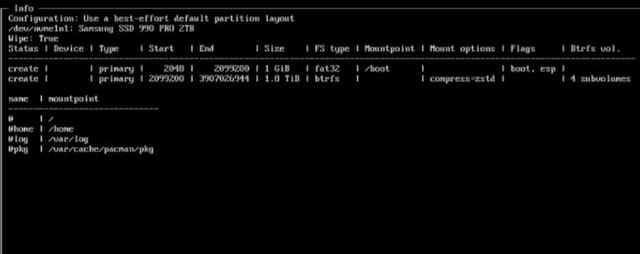
** Sizes will be specific to my situation, be sure to adjust for yours
As we see, there is a 1GiB fat32 boot volume, and there is your entire btrfs disk, compressed, with subvolumes. We chose this “best-effort” option so that it would create this boot disk for us. That boot disk is good to go. The other main disk we will now set up manually to be partitioned.
From this screen click on Partitioning again, but this time choose Manual Partitioning. Select your entire disk that you want to install Omarchy on again and this will bring you back to the screenshot above.
Choose the disk (not the boot disk) and select Delete Partition to delete that disk. This will set our disk to a status of free.
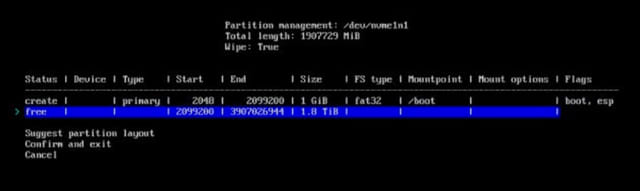
From this free disk we want to create our partitions.
Let’s say I want to create, from my free 1.8TiB drive, a 512GiB partition for Omarchy and leave the rest free to later make into an NTFS drive to share between my Omarcy and Windows operating systems.
Let’s click on the free disk and create a partition of 512GiB. 👇
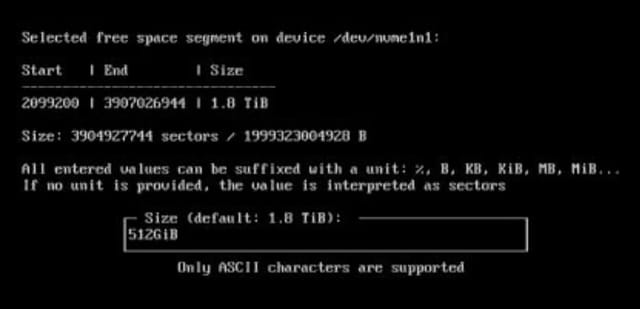
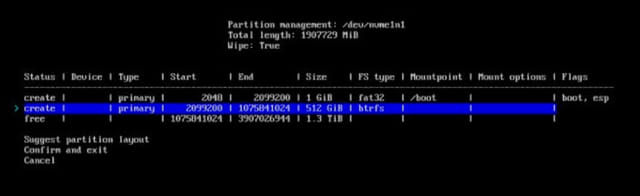
Choose btrfs for the filesystem. And we now have our 512GiB partition to install Omarchy on, leaving the rest free to make into an NTFS later. It should look like this: 👇
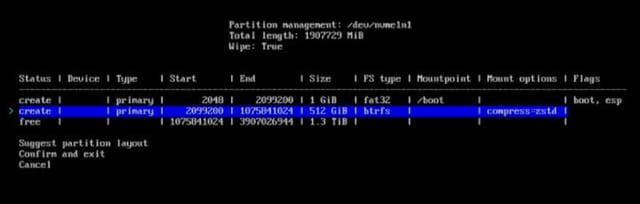
Finally choose this 512GiB disk again and select Mark as Compressed. You should now see compress=zstd for this partition in the table. 👇
Now before we choose Confirm and exit to run these partition actions on install, here’s where DoppioJP's info was so very helpful. Since we chose the manual partition option, and deleted the partition (which included pre-assigned subvolumes), we have to add back the required subvolumes.
First, click on our soon-to-be Omarchy partition (512GiB in my case) and choose Set subvolumes. Choose Add subvolume and add these:
| name | mountpoint |
|---|---|
| @ | / |
| @home | /home |
| @log | /var/log |
| @pkg | /var/cache/pacman/pkg |
You’ll do this for all four, then choose Confirm and exit.
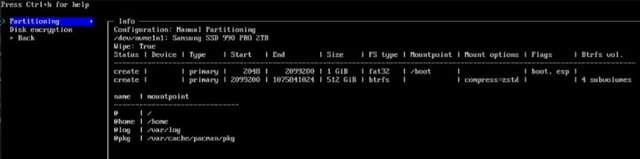
And there you go. It will be configured to create your 1GiB boot disk, your 512GiB partition, and leave the rest free.
Your final Partitoning should look like this:
Step 6: Finish installation
Now go ahead and choose Disk encryption, select LUKS, set an encryption password for it, and then select our partition as the one being encrypted.
Finally, make sure that all the other configuration options are set as noted in the Omarchy manual install documentation. Each option listed on that page must be configured.
After those are checked off, select the Install option to install Arch, reboot your machine, log in with the user you created, and then you can install Omarchy on your new partition by running:
curl -fsSL https://omarchy.org/install | bashAnd be sure to install Omarchy on the partition we created for it.
What about the unallocated space?
So in my own example, I had left some free unallocated space to use as an NTFS drive that both Omarchy and Windows could both access.
I created this from Windows:
- Open Disk Management
- Right-click the Unallocated space
- Click New Simple Volume
- Accept the full size
- Assign a drive letter (e.g. D: or V:)
- Format as: NTFS, Default allocation size, and label it something like Shared or Media
- TIP: Disable Fast Startup or you Linux will mount NTFS read-only. Go to Control Panel > Power Options > Choose what the power buttons do > Disable “Turn on fast startup”
And then I mounted it as a drive on Omarchy Linux:
- Run
lsblk -f - Find the NTFS partition (for example /dev/nvme0n1p3)
- Run
sudo mkdir -p /mnt/shared && sudo mount -t ntfs3 /dev/nvme0n1p3 /mnt/shared
And made sure to set it to auto-mount at boot:
- Get the UUID:
blkid /dev/nvme0n1p3 - Edit fstab:
sudo nvim /etc/fstab - Add this line replacing UUID:
UUID=XXXX-XXXX /mnt/shared ntfs3 defaults,noatime 0 0 - Save, exit, and test:
sudo mount -a, and if no errors, you’re all set.
Let me know any questions or comments below.
This page may contain affiliate links. Please see my affiliate disclaimer for more info.