Most people using OpenClaw don’t even know skills exist.
Or they’ve seen them mentioned but never actually set one up.
I found myself in that camp until recently.
Skills are instruction sets that teach your agent how to do specific things. Some come bundled with OpenClaw, others you install from ClawHub, and you can even write your own. The whole thing is much simpler than it sounds. (The concept isn’t OpenClaw-specific, by the way. For the broader picture, see my practical guide to Agent Skills and SKILL.md files.)
Here’s how it’s wired up and which ones are initially worth your time.
What are skills, exactly?
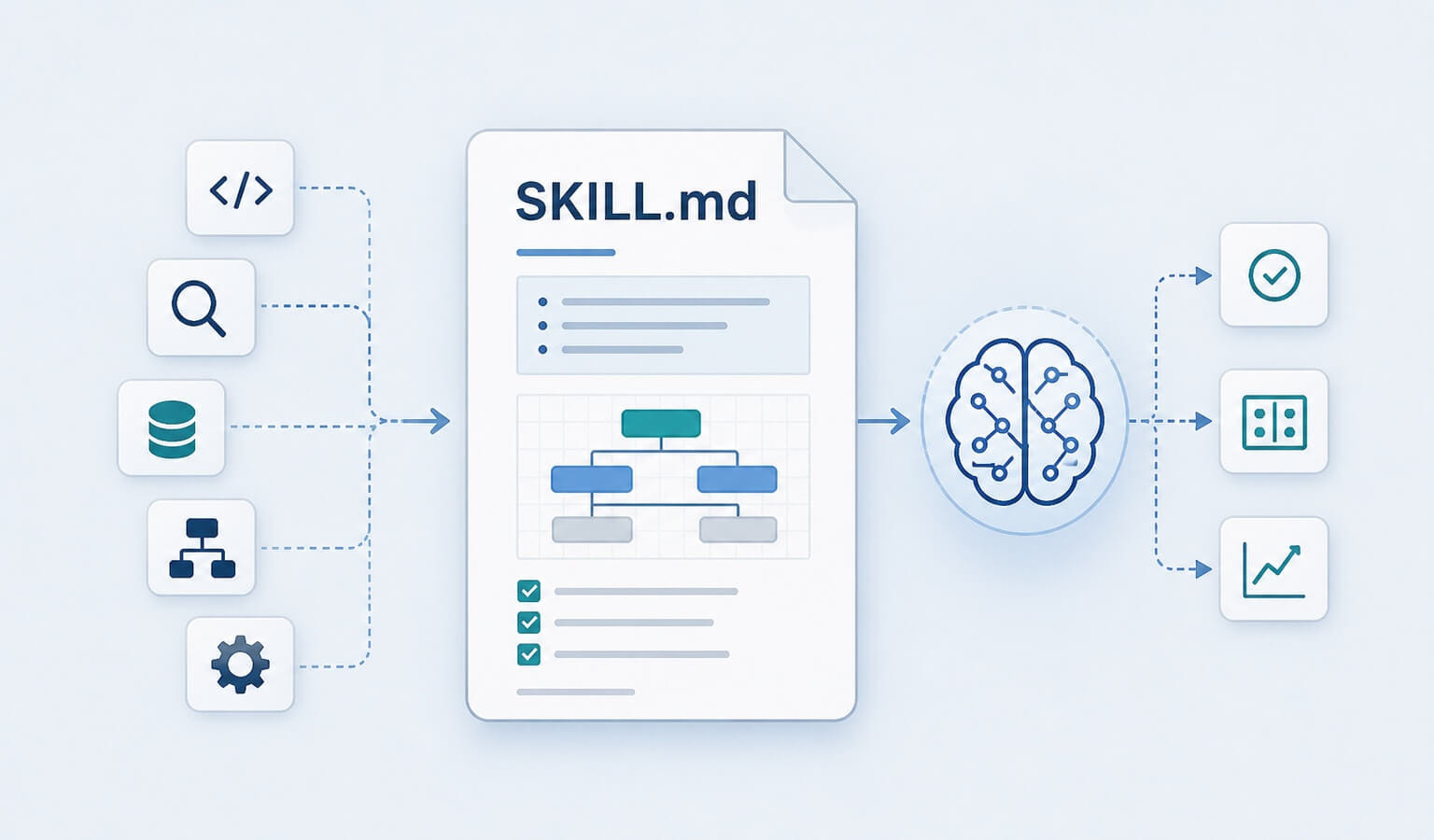
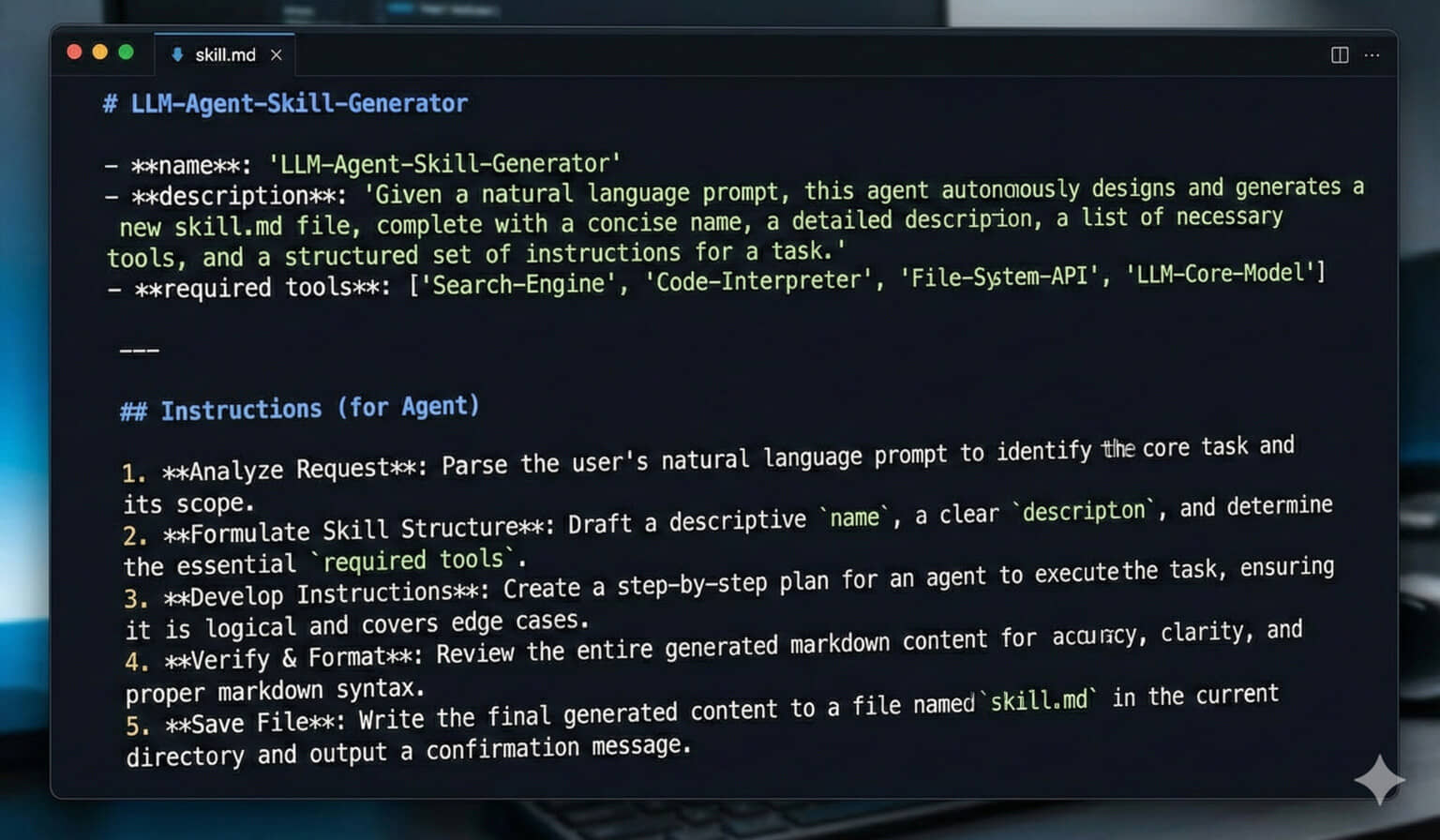
A skill is a folder with a SKILL.md file inside it. That file has YAML frontmatter (a name and description at minimum, plus optional requirements) and a set of instructions your agent reads when a task matches the skill’s description.
That’s it. No plugins, no APIs. Just a markdown file with instructions.
When you ask your agent to do something, OpenClaw matches your request against skill descriptions. If one fits, the agent reads those instructions and follows them. You don’t have to invoke skills by name, just ask normally and it figures out which skill applies.
Where skills live
Skills load from several locations, in order of priority:
- Workspace skills (
~/.openclaw/workspace/skills/). Highest priority. These are yours. - Agent skills (
<workspace>/.agents/skills/and~/.agents/skills/). The shared.agentsformat, so skills you already use with other agents work here too. - Managed skills (
~/.openclaw/skills/). Shared across all your agents. ClawHub installs land here. - Bundled skills. Ship with OpenClaw itself. Weather, Discord, 1Password, etc.
You can also point OpenClaw at extra folders via skills.load.extraDirs in ~/.openclaw/openclaw.json, which load at the lowest priority.
If two skills share the same name, the one higher on the list wins. So your workspace skills override everything.
How to install a skill
From ClawHub (easiest):
Skill management is built into the OpenClaw CLI:
openclaw skills install @owner/skill-nameThis drops the skill into ~/.openclaw/skills/. Done. There’s also openclaw skills search "query" to find skills from the terminal and openclaw skills update --all to keep them current. (The standalone clawhub CLI still works if you have it installed, but you don’t need it.)
Manually:
Create a folder in ~/.openclaw/skills/ or ~/.openclaw/workspace/skills/ with a SKILL.md inside. The SKILL.md needs frontmatter with at least a name and description.
Check what’s installed and eligible:
openclaw skills list
openclaw skills list --eligible
Some skills have dependencies (specific CLI tools that need to be installed).
If a skill shows up but isn’t “ready,” check what binary it needs.
New skills show up automatically. OpenClaw watches your skill folders and refreshes whenever a SKILL.md changes, so there’s no restart step. The one exception is skills hosted on a remote node, which need that node restarted to pick up changes.
The gating system
Skills can declare requirements. A skill that needs rg (ripgrep) won’t show as eligible until rg is on your PATH. Same for jq, summarize, or any other binary.
The tricky part: OpenClaw’s gateway process might have a different PATH than your terminal. If you installed something via Homebrew or into ~/bin, the gateway might not see it. Run openclaw doctor --repair to sync things up, or manually edit the PATH in the launchd plist.
The 5 skills I actually use
I’ve tried a bunch. These are the ones that stuck.
1. Humanizer
Didn’t expect this one to be as useful as it is. It catches AI writing patterns and rewrites them based on Wikipedia’s “Signs of AI writing” guide. No external dependencies, it’s purely instruction-based.
I run it as a last pass on blog posts. It catches things I miss: rule-of-three lists, em dash overuse, words like “delve” and “landscape,” and that tone where everything is “Great question!” Annoying once you notice it.
Install: openclaw skills install @biostartechnology/humanizer
2. Summarize
Feed it a URL, podcast, or YouTube video and it pulls out the key points. I use it for content research, catching up on long articles I don’t have time to read, and getting the gist of videos before deciding if they’re worth watching.
Needs the summarize binary. Install via Homebrew:
brew install summarizeOr via npm with npm i -g @steipete/summarize. (The old steipete/tap/summarize tap formula is gone, so update your install if you set this up a while back.)
3. Session Logs
Bundled with OpenClaw, no install required. Lets you search through your past conversations. “What did we talk about last week?” or “When did I set up that cron job?” It greps through your session JSONL files with jq and rg.
This is useful because OpenClaw conversations get compacted over time and older context disappears from the active session. Session logs give you a way back in. If that context loss is a recurring problem for you, it’s really a memory issue, and QMD fixes the search side of it.
It does need jq and rg (ripgrep) on your PATH before it shows as ready:
brew install jq ripgrep4. Weather
Bundled with OpenClaw, so it’s already there. Simple, but I use it in my morning briefing cron job. Pulls from wttr.in, no API key needed.
Not glamorous. Runs every morning at 8 AM and tells me if I should grab a jacket. That’s all I need from it.
5. GOG (Google Workspace)
If you use Gmail, Google Calendar, or Drive, this skill gives your agent access to all of it. My agent checks email on a schedule, reads my calendar for upcoming events, and adds new ones when I tell it to.
Setup is more involved (OAuth flow with Google), but once it’s working, it’s one of the most practical skills you can have. Check the GOG CLI docs for setup.
Skills I tried and dropped
CodexBar / Model Usage tracks your API costs via a macOS menu bar app. Cool idea, but it needs a GUI running. If you’re running headless like I am, it’s useless. Installed it, realized the problem, uninstalled it five minutes later.
Apple Notes / Apple Reminders have the same issue. They need macOS GUI access that a headless server doesn’t have. If you’re running OpenClaw on a Mac you actually sit in front of, these might work for you.
Writing your own skills
If you’ve got a workflow you repeat constantly, turn it into a skill. The barrier is low.
Create a folder in your workspace:
~/.openclaw/workspace/skills/my-skill/SKILL.mdThe SKILL.md just needs:
---
name: my-skill
description: Does the thing I always need done
---

# Instructions

When asked to [do the thing], follow these steps:
1. Step one
2. Step two
3. Step three
Your agent picks it up automatically, no restart needed. The description is what OpenClaw matches against when deciding which skill to use, so make it specific.
Vet before you install
One warning before you go browsing. ClawHub is an open registry, anyone can publish to it, and bad actors have. Earlier this year the ClawHavoc campaign pushed over a thousand malicious skills through compromised accounts, and Bitdefender found that roughly 17% of the skills it analyzed in the platform’s early weeks carried malicious payloads.
ClawHub tightened things up in response. Published skills now get screened through VirusTotal and ClawScan, and NVIDIA’s SkillSpector adds semantic analysis that flags hidden instructions and skills whose actual behavior doesn’t match their description. The CLI will even make you pass an --acknowledge-clawhub-risk flag in certain cases.
Screening isn’t a guarantee, though. Check the security audit badge on the skill’s ClawHub page, and give some weight to authors with history and stars. Most importantly, read the SKILL.md before installing. It’s just a markdown file. If it tells your agent to pipe a script from some random URL or send data somewhere weird, walk away.
Start small
The docs make skills seem heavier than they are. It’s markdown files with instructions and a one-command install.
Start with humanizer and summarize. They’re useful from day one. Add session-logs once you’ve been running long enough to have history worth searching.
Browse ClawHub for more. New skills show up daily, just vet them before they touch your machine.
What are your most-used skills?
This page may contain affiliate links. Please see my affiliate disclaimer for more info.