Anthropic released Claude Cowork earlier this year and it cause quite a stir. Software stocks dropped. People started comparing it to Microsoft Copilot. The hype was real.
But here’s the thing. A lot of people downloaded it, opened it up, and thought… “Okay, now what?”
If that’s you, you’re not alone. The concept of an “AI agent that works on your desktop” sounds impressive in a press release, but it can feel abstract when you’re just sitting there staring at a chat window wondering what to type.
So let me break it down.
Here are 14 practical, real-world use cases for Claude Cowork that I think will make it click for you. I’ve grouped them by the kind of work they handle, so skip to whatever sounds like your week.
But First, What Even Is Cowork?
If you’ve heard of Claude Code (Anthropic’s terminal-based coding agent), Cowork is essentially the same powerful agent technology, but wrapped in a friendly desktop interface that doesn’t require you to know what a terminal is.
You point it at a folder on your computer, describe what you want done, and it goes to work. It can read your files, create new ones, edit existing ones, search the web, connect to tools like Gmail and Google Drive, and execute multi-step tasks, all without you hovering over it the whole time.
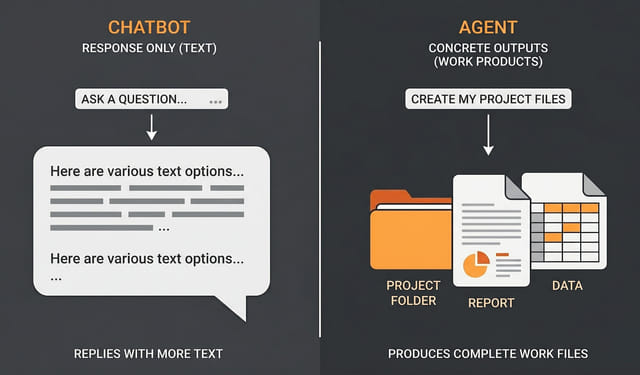
Think of it less like a chatbot and more like a very capable intern who works fast and doesn’t need coffee breaks.
It’s also grown since launch. Cowork can now control apps on your computer directly, opening them and clicking around when there’s no cleaner integration to use. And with a newer feature called Dispatch (currently in preview on Pro and Max plans), you can send it tasks from your phone and let it work away on your desktop while you’re off doing something else.
Now for the use cases.
Files and Organization
1. Organize and Rename a Messy Folder
Let’s start with the most relatable one. Your Downloads folder is a graveyard of random PDFs, screenshots, installers, and files named final_final_v3_REAL.docx. You know it. I know it.
Point Cowork at the folder and tell it to scan everything, propose categories, suggest naming conventions, and organize the mess. It’ll show you a plan before making changes, so you approve it first. Then it sorts months (or years) of chaos in minutes.
The same trick works on a pile of photos or videos. Cowork can read file metadata, dates, and even what’s actually in an image, so it can sort them by date and rename each one with a short description of what’s in the shot. This is one of Anthropic’s own demo use cases, because the mess is that universal.
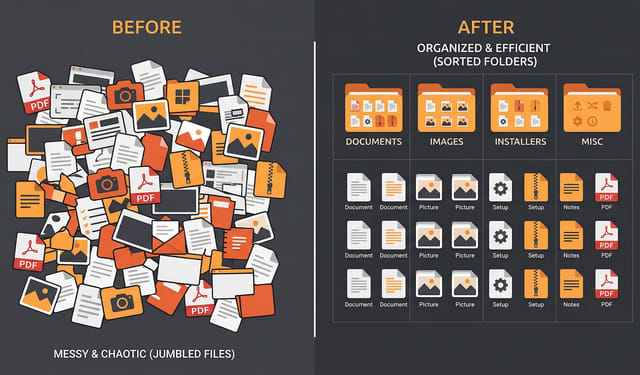
“Scan my Downloads folder, propose a set of categories and a naming convention, show me the plan first, then sort and rename everything.”
2. Bulk-Convert a Folder of Files
Format conversions are the kind of small, annoying task you usually solve by uploading your files to some random website you’re not totally sure you trust. Cowork does it locally instead. Hand it a folder and ask it to turn every CSV into a formatted Excel sheet, a stack of Markdown files into PDFs, or a batch of images into a smaller, web-friendly size.
Because it can run code right on your machine, it isn’t locked to a single converter. You describe what you’ve got and what you want out the other end, it figures out how to get there, and the converted files land right back in the folder.
“Convert every CSV in this folder to a formatted Excel file and turn the Markdown files into PDFs. Put the results in a new ‘converted’ subfolder.”
Documents and Reports
3. Turn a Pile of Receipt Photos into an Expense Report
Got a folder full of receipt photos from a work trip or business expenses? Drop them in a folder, point Cowork at it, and ask it to extract the data from each image, categorize the expenses, and generate a formatted spreadsheet or Word document.
No manual data entry. No squinting at crumpled thermal paper trying to read a total. Just a clean expense report ready to submit.
“Read every receipt photo in this folder, pull the date, vendor, and total from each, categorize the expenses, and build me a formatted expense spreadsheet.”
4. Analyze a Spreadsheet and Generate a Polished Report
This is where Cowork starts to feel like a superpower. Hand it a messy Excel file (financial data, sales numbers, survey results, whatever) and ask it to analyze the data and produce a formatted Word document with charts, summaries, and key takeaways.
It uses built-in skills for both Excel and Word file formats, so it goes from raw data to a presentation-ready report without you touching a single cell.
“Analyze sales-2026.xlsx and write a Word report with the key trends, a couple of charts, and a short summary I can hand to my manager.”
5. Reconcile Two Spreadsheets
Anyone who works with data has done this by hand: two versions of a list that are supposed to match, and you need to find every spot where they don’t. This quarter’s customer export against last quarter’s. The invoices you sent against the payments that came in. Two teammates’ copies of the same tracker that have drifted apart.
Give Cowork both files and tell it what “matching” actually means. It lines them up, flags the rows that disagree, catches duplicates, and hands you a clean summary of the differences. It leans on the same Excel skill as the report example above, so you get a spreadsheet you can keep working in rather than a wall of text.
“Compare customers-q1.xlsx and customers-q2.xlsx, match them on email address, and give me a spreadsheet of the rows that were added, dropped, or changed.”
6. Research a Topic and Draft a Document in One Shot
Instead of the usual workflow of searching the web, reading articles, taking notes, and then writing. Just describe what you need.
Cowork searches the web, pulls in your connected tools for context, and delivers an actual file on your machine. It does the whole workflow, not just the “here’s a chatbot response” part.
“Research the current state of remote work trends in 2026, pull in any relevant docs from my Google Drive, and draft a 1,500-word post saved as a markdown file.”
7. Summarize a Long PDF and Ask It Questions
Some PDFs you just don’t want to read. A 90-page report, a dense contract, a research paper, a 40-page product manual. Drop one on Cowork and ask for the short version: the main points, the numbers that matter, anything that looks like a catch.
The better part is what comes next. Because it has the whole document loaded, you can keep going. “What does it say about cancellation?” “Pull every deadline into a list.” “Is there anything in here that contradicts the summary you just gave me?” That’s the gap between a static summary and an actual back-and-forth with the document.
“Summarize this contract in one page: the key terms, dates, and anything that looks like a catch. Then wait, I’ll have follow-up questions.”
8. Merge, Split, and Clean Up PDFs
We all deal with PDFs more than we’d like to. Cowork’s PDF skill handles the grunt work: merging multiple PDFs into one document, splitting a massive PDF into sections, rotating pages, adding watermarks, and even filling in PDF forms.
All from a plain English prompt. No need to hunt for some sketchy free PDF tool online.
“Merge these three PDFs into one in the order I listed, then add page numbers and a ‘DRAFT’ watermark to every page.”
9. Build a Slide Deck from Messy Notes
We’ve all been there. You have a bunch of scattered notes from meetings, brainstorms, or research sessions, and now you need to turn them into a presentation by tomorrow.
Dump your notes into a folder, tell Cowork what the presentation should cover and how many slides you want, and it generates an actual .pptx file with structured slides, titles, and content. It’s not going to win any design awards, but it gets you 80% of the way there in minutes instead of hours.
“Turn the notes in this folder into a 10-slide .pptx deck for a project kickoff, with a title slide and one slide per main topic.”
Email and Meetings
10. Triage and Draft Email Responses
With Gmail connected as a connector, Cowork can scan your inbox and help you get through the backlog. It can surface emails that need responses, draft replies matching your tone, flag newsletter subscriptions you might want to cancel, and organize threads by priority.
You still review and send everything yourself (it’s not firing off emails autonomously), but it eliminates the mental overhead of staring at 200 unread messages and figuring out where to start.
“Go through my inbox, surface the emails that actually need a reply, and draft responses in my usual tone. Don’t send anything, just leave the drafts.”
11. Build a Prep Brief Before Every Meeting
With your Google Calendar and Gmail connected, Cowork can get you ready for a meeting before you’ve finished your coffee. Tell it to look at your next calendar event, pull the recent email thread with whoever you’re meeting, grab any related docs from Google Drive, and write you a one-page brief: who they are, what the meeting is about, where you left things last time, and a few questions worth asking.
Pair this with the scheduled tasks below and it runs every morning on its own. You sit down, and the prep is already waiting on your desk.
“Look at my next calendar event, pull the recent email thread with the attendees and any related Drive docs, and write me a one-page prep brief with a few good questions to ask.”
Research and Cross-Referencing
12. Cross-Reference Multiple Documents
This is a killer use case for anyone who deals with contracts, proposals, requirements docs, or any situation where you need to compare multiple files.
Point Cowork at a folder containing a contract, a proposal, and a set of requirements, and ask it to cross-reference them. It can flag inconsistencies, highlight gaps between what was proposed and what was agreed to, and produce a comparison summary.
Lawyers, project managers, and freelancers: this one’s for you.
“Cross-reference contract.pdf, proposal.pdf, and requirements.docx. Flag anything inconsistent or missing between them and give me a comparison summary.”
Automation and Hands-Off Work
13. Set Up Recurring Automated Tasks
This one is slept on. Using the /schedule command, you can tell Cowork to run a task on a schedule: daily, weekly, monthly.
Some ideas:
- “Every Monday morning, scan these three competitor websites and summarize any changes.”
- “Every Friday, look through my project folder and generate a weekly status update.”
- “Every day at 9am, check my calendar and draft a prioritized to-do list for the day.”
The catch is your computer needs to be awake and the Claude Desktop app needs to be open. But if you’re at your desk anyway, this is incredibly powerful automation without writing a single line of code.
“Every weekday at 8am, check my calendar and inbox, then draft a prioritized to-do list for the day and save it to my Notes folder.”
14. Hand Off the Browser Busywork
This is the newest trick, and the one that feels a little like cheating. When there’s no clean integration for what you need, Cowork can drive your browser directly, clicking and typing the way you would.
That opens up the worst category of work there is: repetitive data entry. Copying forty rows from a spreadsheet into some clunky web portal. Filling the same form over and over with different details. Pulling numbers off a dashboard that stubbornly refuses to have an export button. You give it the data and the destination, and it grinds through the busywork while you go do something better with your afternoon.
It’s still early here (computer use is a preview feature on Pro and Max plans), so watch it on anything that really matters. But for the boring, repetitive web tasks nobody wants, it’s already a genuine time saver.
“Take each row in leads.xlsx and enter it into the contact form at [URL], submitting after every entry. Show me the first one before you continue.”
The Key Mindset Shift
The biggest mental hurdle with Cowork is that most people are still thinking in chatbot mode. They type a question and expect a response.
Cowork is different. You describe an outcome (a finished document, an organized folder, a formatted report) and then step away while it works. It breaks the task into steps, executes them, and delivers results as actual files on your computer.
Once that clicks, you start seeing use cases everywhere.
Getting Started
Cowork is available in the Claude Desktop app (both macOS and Windows) on all paid plans: Pro, Max, Team, and Enterprise. Just look for the “Cowork” tab next to Chat and Code.
Start small. Point it at a single folder with a simple task. Watch how it works. Then scale up from there.
Trust me, once you see it organize 300 files in your Downloads folder in under two minutes, you’ll never look at it the same way again.
This page may contain affiliate links. Please see my affiliate disclaimer for more info.