Starship is the prompt I have run for years now, across zsh on my Mac and bash on every server I SSH into. It is a single Rust binary that works in every shell, and it is fast enough that I never think about it.
The part most people never touch is the preset catalog. Starship ships a dozen ready-made configs, and one command drops any of them onto your machine. You do not have to hunt down a theme manager or paste TOML out of somebody’s gist.
But the docs leave out the parts that bite you, and I hit all of them building the screenshots for this post. So here is the honest version: every preset shipping in Starship today, the exact command that installs it, whether it needs a Nerd Font, and what each one puts on your screen. That last one matters more than the colors. A prompt is a status bar, and these presets disagree wildly about what is worth showing you.
First, the two commands that trip everyone up
Install Starship and hook it into your shell:
brew install starship
echo 'eval "$(starship init zsh)"' >> ~/.zshrc   # bash: starship init bash, fish: starship init fish
Now the preset command. Every guide on the internet gives you this line:
starship preset gruvbox-rainbow -o ~/.config/starship.tomlThat line is correct, and it will still fail for you twice.
It does not create ~/.config. If that folder does not exist yet, you get a “No such file or directory” error about a temp file, which is a confusing way to say “make the folder first.”
It refuses to overwrite an existing config. If you already have a starship.toml, the command exits with an error telling you to use --force. This is Starship being a good citizen, but it means the copy-pasted one-liner fails the moment you try a second preset.
So the version that actually works, every time:
mkdir -p ~/.config
cp ~/.config/starship.toml ~/.config/starship.toml.bak 2>/dev/null   # keep what you had
starship preset gruvbox-rainbow -o ~/.config/starship.toml -fstarship preset ... -o writes a whole new starship.toml over the top of your old one. Anything you had customized is gone. That is what the cp line above is for. If you just want to look before you leap, drop the -o flag and the preset prints to your terminal instead: starship preset tokyo-night | less.
One more trap, and this is the one that cost me the most time. The names on the docs website are not always the names the CLI accepts. The docs have pages called nerd-font, no-runtimes and plain-text. Feed any of those three to the CLI and it rejects them, because the real names are nerd-font-symbols, no-runtime-versions and plain-text-symbols. Save yourself the guessing and just ask your own binary what it has:
starship preset --listEvery command below is the real CLI name, run against Starship 1.26.0. Version 1.27.0 ships the same twelve presets.
What your prompt is actually telling you
Before the list, it helps to know what the segments mean, because the presets below are mostly rearranging the same handful of modules.
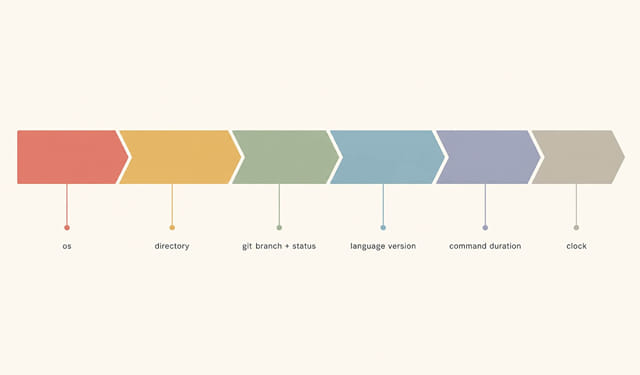
The ones worth knowing:
- Git status flags. A
!means you have modified files,?means untracked files,+staged, and arrows mean you are ahead of or behind your remote. This is the single most useful thing on the line, and every preset here shows it. - Language versions. Starship detects the project you are standing in and shows the runtime version. Which languages it bothers to show is a per-preset decision, and the presets disagree more than you would expect.
- Command duration. How long your last command took. Here is the gotcha nobody mentions: it only appears for commands slower than 2 seconds. I tested the boundary, and 1999ms shows nothing while 2000ms shows
2s. So if a preset advertises timing and you never see it, your commands are just fast. - Cloud and container context. AWS profile, Azure subscription, Kubernetes namespace, Docker context. In Starship’s defaults the AWS and Docker modules are on, and Kubernetes and Azure are off until you enable them. Kubernetes is worth turning on if you have ever run a command against the wrong cluster.
Two commands that pay for themselves here. starship explain breaks down every segment currently on your prompt in plain English, and starship timings shows you which module is slow if your prompt ever starts dragging.
1. Gruvbox Rainbow
starship preset gruvbox-rainbow -o ~/.config/starship.toml -fNerd Font: required. This is the one I keep coming back to, and the one I would hand to someone who just wants their terminal to look good without a decision.
It is the full powerline treatment: an OS icon, your username, a truncated path, the git branch and status, then runtime versions for C, C++, Rust, Go, Node, Bun, PHP, Java, Kotlin, Haskell and Python, plus Docker context, conda, and a clock on the right. The warm gruvbox palette is easier on the eyes over a long day than the neon stuff.
The one thing it does not show is command duration. If you want timing, Catppuccin Powerline below is the same idea with the clock and the timer both included.

2. Catppuccin Powerline
starship preset catppuccin-powerline -o ~/.config/starship.toml -fNerd Font: required. Gruvbox Rainbow’s layout in the Catppuccin palette. The segments are nearly the same (it drops C++, Docker context and pixi), plus command duration, which is the addition that makes it my pick if you like knowing what took 40 seconds.
It ships with all four Catppuccin flavors baked into the file. Change one line near the top of your new starship.toml to switch:
palette = 'catppuccin_mocha' # or catppuccin_latte, catppuccin_frappe, catppuccin_macchiatoUse catppuccin_latte if you work in a light terminal theme. The other three are dark.

3. Tokyo Night
starship preset tokyo-night -o ~/.config/starship.toml -fNerd Font: required. The cool blue counterpart to the two above, based on the popular VS Code theme. It also does one thing the others do not: it swaps folder icons into your path, so Documents, Downloads, Music and Pictures render as little glyphs instead of words.
Know what you are giving up, though. Tokyo Night only shows Node, Bun, Rust, Go and PHP. There is no Python segment. I ran it in a repo with a main.py sitting right there and the prompt said nothing. If you write Python, this preset is quietly lying to you by omission, and you would need to add the module back by hand.

4. Pastel Powerline
starship preset pastel-powerline -o ~/.config/starship.toml -fNerd Font: required. The original powerline preset, and the one the others were built from. It casts the widest language net of the four powerline presets, covering C, Elixir, Elm, Go, Gradle, Haskell, Java, Julia, Maven, Node, Bun, Nim, Rust and Scala, plus Docker context and a clock with a little heart next to it. JVM developers, this is your preset.
Same warning as Tokyo Night, in a different spot: no Python and no PHP. And one quirk that surprised me when I shot the screenshot. It has no prompt character at all. No ❯, no $. The powerline bar ends and you type on the bare line underneath it. Some people love that. If you are not one of them, it is a two-line fix in the config.

5. Jetpack
starship preset jetpack -o ~/.config/starship.toml -fNerd Font: not required (the docs recommend plain JetBrains Mono). But it needs a shell that supports a right-hand prompt. zsh and fish have one built in. Bash only gets one if you install ble.sh or Flyline, and Starship added Flyline support in 1.27.0.
This is the cleverest layout here. It splits the difference between minimal and informative by pushing everything to the right. Your left prompt stays short and calm, holding just the command duration and your git line-change counts (▴1▿1, lines added and removed). The directory, git status, package version and runtime versions all live on the right edge, out of your way while you type.
If you have ever loved a minimal prompt but missed the context, this is the compromise, and it is worth the ten seconds it takes to try.

6. Pure
starship preset pure-preset -o ~/.config/starship.toml -fNerd Font: not required. A faithful port of Pure, the minimalist zsh prompt, and the preset I recommend to anyone who finds the powerline stuff loud.
It shows the directory, the git branch with a dirty marker, the command duration, and your Python virtualenv, then drops you onto a clean second line with a ❯ that turns red when the last command failed. That is the whole prompt. No glyphs to install, and no parade of version numbers you were not going to read.
If you are coming from an Oh My Zsh theme and you want the same calm feel without the framework, start here.

7. Nerd Font Symbols
starship preset nerd-font-symbols -o ~/.config/starship.toml -fNerd Font: required, obviously. This one is different in kind from everything above. It changes no colors and no layout. All it does is swap Starship’s symbols for Nerd Font glyphs, so Node gets its hexagon, Python gets its snake, AWS gets its logo, and so on.
Think of it as the symbol layer rather than a theme. It is the preset to reach for when you like Starship’s stock look and just want proper icons on it.

8. Bracketed Segments
starship preset bracketed-segments -o ~/.config/starship.toml -fNerd Font: not required. Starship’s default prompt reads like a sentence: api on main [!?] is 📦 v1.1.0 via v24.18.0. All those little English words (on, is, via) are doing nothing for you once you know how to read the line.
This preset throws them out and wraps every module in brackets instead, giving you [ main][!?][📦 v1.1.0][ v24.18.0]. You get the same information with less to read past. It is a small change, it keeps whatever colors you already had, and I think it is a straight improvement on the default.

9. No Runtime Versions
starship preset no-runtime-versions -o ~/.config/starship.toml -fNerd Font: not required. Keeps the language icons, drops the version numbers. Your prompt still tells you “this is a Node project and a Python project,” it just stops telling you which versions.
This is the preset for anyone who records their screen. Version numbers date a video the moment you publish it, and they are the first thing commenters correct you on. It is also the sane default inside containers, where the runtime version is a property of the image and not something you need to be reminded of on every line.
Note that it does still show your package version from package.json, so if you are demoing a project and you do not want that on screen either, disable the package module too.

10. Plain Text Symbols
starship preset plain-text-symbols -o ~/.config/starship.toml -fNerd Font: not required. No Unicode at all, in fact. Every symbol becomes an ASCII word: nodejs, py, aws, pkg. The prompt character becomes > and errors become x.
This is the one that saves you on other people’s machines. SSH into a server with a font from 2006, open a terminal inside a CI job, or work over a connection that mangles Unicode, and the pretty presets fall apart into little empty boxes. This one just works. I keep it in my dotfiles for exactly that reason, and it is also the friendliest option if you use a screen reader.

Two more worth knowing
The catalog has twelve entries, and the last two are worth a mention even though they are more like patches than themes.
no-nerd-font swaps Nerd Font glyphs for regular Unicode and emoji, so your prompt survives on a machine without a patched font. The Starship docs say this one is slated to become the default in a future release, which tells you where the project is heading: fewer assumptions about your font.
no-empty-icons hides a toolset’s icon when it finds no version to report, instead of leaving a lonely icon sitting there. A small thing that makes the prompt quieter in mixed repos.
starship preset no-nerd-font -o ~/.config/starship.toml -f
starship preset no-empty-icons -o ~/.config/starship.toml -f
Do not try to combine presets by appending them
The obvious move, once you have two presets you like, is to staple them together:
starship preset tokyo-night > ~/.config/starship.toml
starship preset nerd-font-symbols >> ~/.config/starship.toml   # this breaks it
Do not. I tried exactly this and Starship refused to load the config with a TOML parse error about a duplicate key. Both files define a [bun] table, and TOML does not allow the same table twice. Your prompt does not half-work, it fails outright.
There is no merge flag. To combine presets, pick one as your base, open the other in your editor, and copy the individual keys you want across by hand. The files are plain TOML and they are readable, so this is a five-minute job, not a project.
Which one should you actually use?
If you want to stop reading and just have a good prompt: Catppuccin Powerline if you like a rich, colorful line, Pure if you like a quiet one. Those two cover most people.
Then, whatever you pick, remember that a preset is a starting point and not a contract. It is a plain TOML file at ~/.config/starship.toml. Open it, delete the language segments for languages you do not write, and turn on the modules that would have saved you: the kubernetes module if you run kubectl against more than one cluster, and the aws module if you have ever wondered which profile was loaded. Kubernetes is off by default, so set disabled = false. AWS is on by default, but the powerline presets and Pure leave it out of their format line, so you add $aws there. Both are the kind of thing you only add after it bites you once.
And if your prompt is the last piece of your terminal you have not touched, the Oh My Zsh plugins post is where I would go next.
Starship Presets FAQ
Do I need a Nerd Font to use Starship presets?
For the graphical ones, yes. Gruvbox Rainbow, Catppuccin Powerline, Tokyo Night, Pastel Powerline and Nerd Font Symbols all need a patched font, or their icons render as empty boxes. Pure, Jetpack, Bracketed Segments, No Runtime Versions and Plain Text Symbols work in any font.
Will installing a preset overwrite my Starship config?
Yes. Running starship preset with -o replaces your entire starship.toml. It refuses to overwrite an existing file unless you add -f, which is your one warning. Back up the old file first, or preview a preset by leaving off -o so it prints to the terminal instead.
Can I combine two Starship presets?
Not by concatenating them. Both files will define the same TOML tables, and a duplicate key makes Starship refuse to load the config at all. Pick one preset as your base and copy the keys you want from the other by hand.
Do Starship presets work in bash and PowerShell?
Almost all of them. Starship itself is cross-shell. The exception is Jetpack, which puts half its information in a right-hand prompt and therefore needs a shell that supports one. zsh and fish do out of the box, bash only does with ble.sh or Flyline installed, and PowerShell is not on the list of shells Starship supports for a right prompt.
Why does my prompt never show the command duration?
Because it only appears for commands that took longer than two seconds. I tested the exact boundary: 1999ms shows nothing, 2000ms shows 2s. Lower min_time in the cmd_duration section of your starship.toml if you want to see it more often.
This page may contain affiliate links. Please see my affiliate disclaimer for more info.