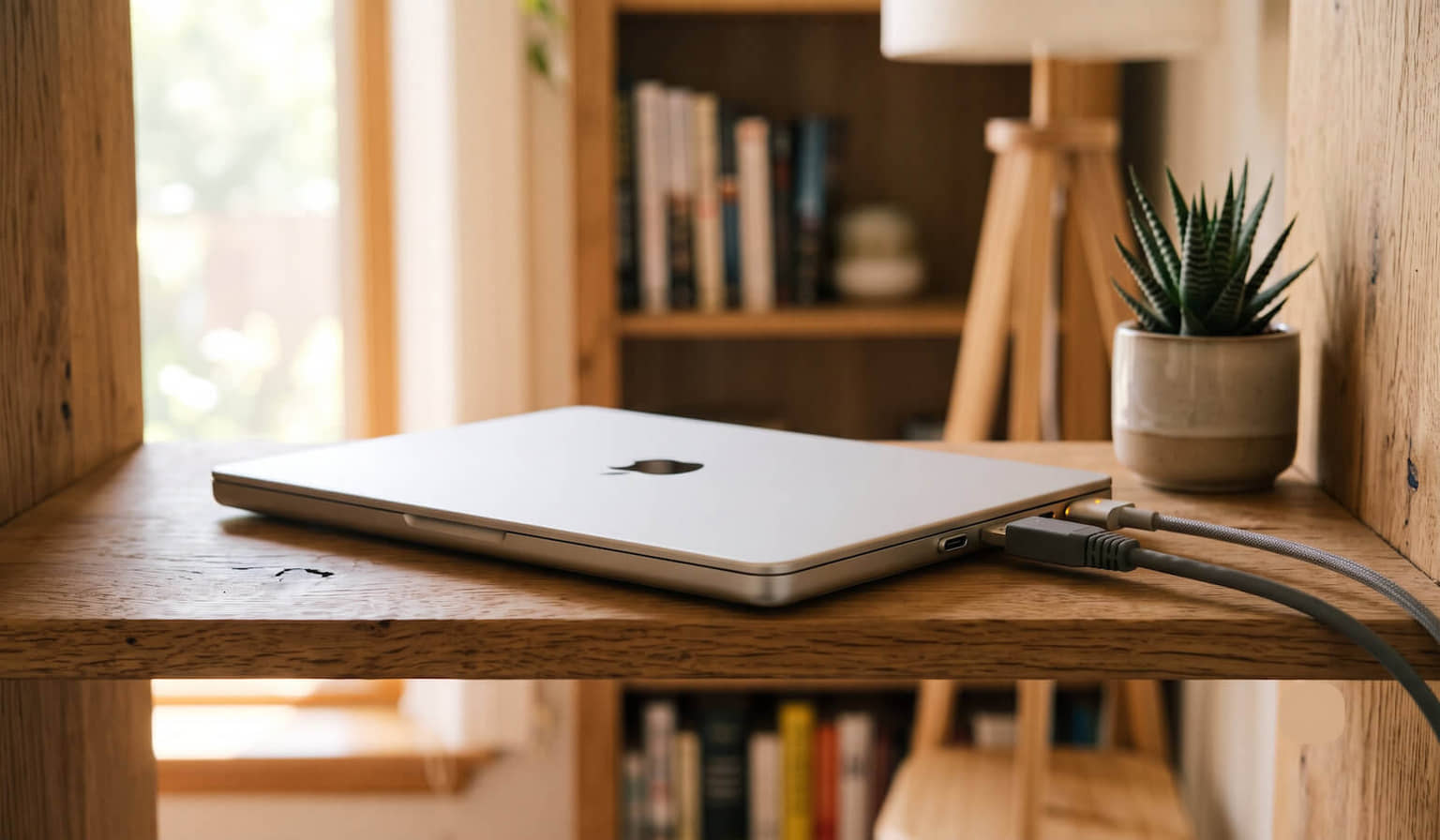
I had an M1 MacBook Pro with a dead screen sitting on a shelf. The repair shop wanted $1,200 to fix the display, which was almost what the thing was worth, so I said no thanks and forgot about it.
Then one day it hit me. A laptop with a broken screen is a perfect headless server. It has 16GB of RAM, an Apple Silicon chip, and it uses little power. I actually didn’t need the display at all.
So I turned it into an always-on home server and pointed it at the thing I actually wanted to run 24/7: self-hosted AI agents. And it’s been humming along closed-lid in my office for months now. It started out running OpenClaw, then I switched to Hermes Agent and set the machine up fresh. Same box, same headless recipe, different agent on top.
If you’re looking to set up a headless mac server, here’s the recipe, plus a handful of things that tripped me up.
What you need
- A Mac you are not using as a daily driver
- A power adapter, since it stays plugged in 24/7
- A wired network connection (more on this below, it is not as simple as “plug in ethernet”)
- Another computer to SSH in, or a monitor and keyboard for the first 20 minutes
- For a closed-lid Mac, a cheap HDMI dummy plug (I will explain why)
If the screen works, do the initial setup directly. If it is dead like mine, hook up an external monitor for setup, or use a remote desktop tool, which I cover near the end.
Step 1: Stop the Mac from sleeping
This is the first thing people get wrong. macOS loves to sleep, and a sleeping Mac is a dead server. Open Terminal and run:
# Never sleep the system
sudo pmset -a sleep 0

# Never sleep the disk
sudo pmset -a disksleep 0

# Keep the network alive
sudo pmset -a tcpkeepalive 1

# Wake on network access
sudo pmset -a womp 1

# Disable Power Nap (it wakes the machine at random)
sudo pmset -a powernap 0

# Restart automatically after a power failure
sudo pmset -a autorestart 1
The important one is sleep 0. Verify your settings with:
pmset -gLook for sleep 0 in the output.
But here is a quirk that cost me an evening. Even with sleep 0 set, when I ran the MacBook fully closed in clamshell mode, it still dropped to sleep after about an hour. The pmset settings looked perfect. It slept anyway.
Two things fix it. Plug in a cheap dummy HDMI display emulator so macOS thinks a monitor is attached, and run a keep-awake app. I use this little HDMI dummy plug together with Amphetamine (optional), which is free on the Mac App Store. With both in place it has not slept since. If you would rather not buy anything, leaving the lid cracked open instead of fully shut also keeps it awake.
Step 2: Enable SSH
You want terminal access from your main machine. Turn on Remote Login:
sudo systemsetup -setremotelogin onOr toggle it under System Settings > General > Sharing > Remote Login. Then connect from another computer:
ssh yourusername@your-mac-ipThis will be password-based.
Set a static IP for this Mac on your router, or use its .local hostname (ssh [email protected]) so the address does not drift on you.
Step 3: Get the networking right (this part is not obvious)
Use a wired connection over Wi-Fi. Wi-Fi works, but it can drop if your router hiccups.
Do not assume your wired connection is named “Ethernet,” and do not assume en0 is wired and en1 is Wi-Fi. On modern MacBooks that are USB-C only, you plug in a USB-to-Ethernet adapter, and macOS names the network service after the adapter, on whatever device number it lands on. List what you actually have first:
networksetup -listnetworkserviceorderOn my MacBook Pro the wired adapter shows up like this, not as “Ethernet”:
(1) USB 10/100/1000 LAN
(Hardware Port: USB 10/100/1000 LAN, Device: en7)

(2) Wi-Fi
(Hardware Port: Wi-Fi, Device: en0)

(3) Thunderbolt Bridge
(Hardware Port: Thunderbolt Bridge, Device: bridge0)
Notice Wi-Fi is en0 here and the wired adapter is en7. Use the real names from your own output. To make macOS prefer the wired connection and fall back to Wi-Fi only if it drops:
sudo networksetup -ordernetworkservices "USB 10/100/1000 LAN" "Wi-Fi" "Thunderbolt Bridge"And to find the Mac’s IP, confirm the device name first instead of guessing:
# Map each interface to its device name
networksetup -listallhardwareports

# Then grab the IP for the right device
ipconfig getifaddr en7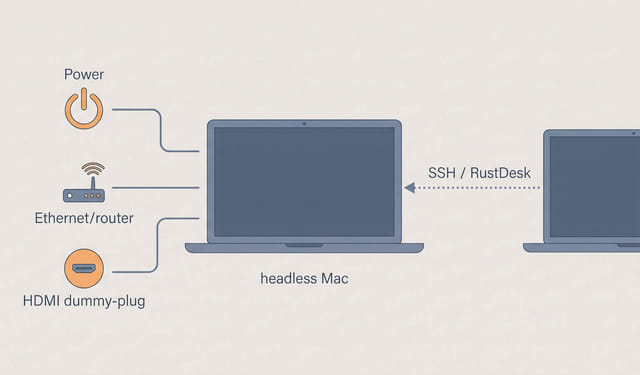
Step 4: Allow accessories before you go headless
This one is easy to miss until it bites you. On Apple Silicon Macs, macOS pops a prompt to approve any new USB or Thunderbolt accessory the first time you plug it in. On a headless box with no easy way to click “Allow,” an ethernet adapter or dummy plug you connect later can just sit there doing nothing.
Set it once, up front, while you still have GUI access. Go to System Settings > Privacy & Security > Allow accessories to connect and choose Always. Now you can plug things in remotely or after a reboot without a dialog blocking you.
Step 5: Auto-login and auto-restart
If the power blips, you want the Mac to come back on its own without you babysitting it. You already set autorestart 1 in Step 1. Add restart-on-freeze:
sudo systemsetup -setrestartfreeze onThen enable automatic login under System Settings > Users & Groups > Automatic Login so the machine boots straight to a logged-in session.
One catch: FileVault breaks auto-login, because the disk needs your password to unlock before the OS can log anyone in. For a server sitting in your house, I disable FileVault. If you would rather keep it, just know you will have to manually unlock after every reboot.
Step 6: Remote GUI access without a monitor
SSH covers day-to-day terminal work, but some macOS permission dialogs (Full Disk Access, Accessibility, Screen Recording) only appear in the GUI. With a dead screen, that is a problem until you add a remote desktop tool.
I use RustDesk, which is free and open source. Install it on the Mac server, and it walks you through granting the macOS permissions it needs. In its settings, turn on Direct IP Access so you can connect by IP instead of a relay code, set a password, and you are done. Now you have full GUI control of the headless Mac from any machine on your network.
Now run your agent
This is the payoff. The host is just a quiet always-on Mac. Drop whatever long-running AI agent you want on top of it. Two I have run on this exact setup:
OpenClaw
OpenClaw installs with a single script that pulls in Node and everything else for you, then an onboarding wizard that can register the background service in one step:
curl -fsSL https://openclaw.ai/install.sh | bash
openclaw onboard --install-daemon
The --install-daemon flag registers OpenClaw as a launchd service so it survives reboots. Check it with openclaw gateway status (you want RPC probe: ok), and manage it with openclaw daemon status, start, stop, and restart. If anything drifts, openclaw doctor --repair audits and fixes it. I wrote a full OpenClaw-on-a-headless-Mac walkthrough, including the skills setup, in this post.
Hermes Agent
Hermes Agent is Nous Research’s open-source, self-hostable agent, released in early 2026. Same one-line install pattern, and the installer handles its dependencies (uv, Python, Node, and friends):
curl -fsSL https://hermes-agent.nousresearch.com/install.sh | bash
hermes setup --portal
The portal step wires up a model and its tools. After that it runs as a background service just like OpenClaw, so every bit of sleep, network, and permission prep above applies unchanged.
That is the nice part. The Mac does not care what you run on it. Both agents are launchd-managed daemons, so the host setup is identical and reusable.
Why bother with a Mac instead of a Pi
I ran an agent on a Raspberry Pi 4 with 4GB of RAM before this. It technically worked, but barely. Semantic memory search got killed by the out-of-memory reaper constantly, anything with real processing made the whole thing crawl, and running multiple sub-agents was a non-starter.
Moving to the 16GB M1 fixed all of it in one shot. Semantic search works, sub-agents run in parallel, tool calls are fast, and I have not seen an OOM kill since. For agent workloads specifically, RAM and a fast chip matter a lot, and that is exactly where a spare Mac walks past a small single-board computer.
Is it worth it?
If you have a Mac collecting dust, do not sell it for parts. Plug it into power and a wired connection, run the commands above, set it to never sleep, and you have an always-on AI agent server that beats a paid VPS for free.
The whole setup takes about an hour. Go check your closet. You might be sitting on a server you forgot you owned.
Headless Mac AI Server FAQ
Can I run an AI agent on a MacBook with a broken screen?
Yes. A broken screen does not affect the rest of the machine. Set it to never sleep, enable SSH and a remote desktop tool for the occasional GUI permission prompt, and it works fine as a headless server.
Why does my Mac still sleep with the lid closed even after pmset sleep 0?
Clamshell mode can override your power settings and sleep the machine after a while. Plug in a dummy HDMI display emulator so macOS thinks a monitor is attached, run a keep-awake app like Amphetamine, or leave the lid slightly open.
Do I need ethernet, or is Wi-Fi okay?
Wi-Fi works, but a wired connection is more reliable for something that needs to stay online. On USB-C Macs you will need a USB-to-Ethernet adapter, and you should set your network service order using the adapter name macOS gives it, not "Ethernet".
How much RAM do I need to run an AI agent locally?
More than a 4GB Raspberry Pi. 16GB on Apple Silicon comfortably handles semantic memory search and parallel sub-agents without out-of-memory crashes, which is the main reason I moved off a Pi.
This page may contain affiliate links. Please see my affiliate disclaimer for more info.